
Table of Contents
Guessing hashtags? That rarely works.
Your video is ready. You open the description box, stare at it for a minute, and type a few hashtags from memory.
Sound familiar? Most creators do exactly that. A few hashtags copied from a big channel. The same set used last time, and the time before that—even on a video about something completely different. Here is the problem. Some of those hashtags have nothing to do with your video. Others are so broad that your video gets buried under thousands of bigger ones. And next time? You guess all over again.
A YouTube hashtag generator fixes that first step. No, it won’t hand you magic hashtags—nothing can. What it gives you is a solid list to start from in seconds. Then you pick the best ones yourself. That part still matters. So this guide covers the rest: the real YouTube rules, how many hashtags to use, where to put them, and what a good description actually looks like. Read it once, and the guessing stops.
First, what is a hashtag?
Simple. A hashtag is a word or short phrase with a # sign in front of it—like #HomeWorkout or #EasyRecipes.
On YouTube, that little # does real work. Click a hashtag and YouTube opens a page full of other videos and playlists on the same topic. So a good hashtag puts your video next to videos like yours, right where interested viewers are already looking.
You can add hashtags in your title or in your description. For most videos, the description is the better home. More on that below.
Hashtags and tags are not the same thing
This mix-up is very common, so take a second here. Hashtags and tags live in different places, and they do different jobs.
| Hashtags | Tags | |
| Where are they? | Visible, in your title or description | Hidden, in the Tags box in YouTube Studio |
| Can viewers click them? | Yes—each one is a link | No, viewers never use them |
| What is the job? | Group your video with other videos on a topic | Help YouTube when a word is often spelled wrong |
| Example | #HomeWorkout | home workout, home work out, homeworkout |
Use this YouTube hashtag generator for the visible ones. For the hidden Tags box, use the free YouTube Tag Generator on ToolifyPro instead, pick the best 10 to 15 tags, and paste them in Studio.
One warning, because it catches people out: don’t paste a long list of plain tags into your description. YouTube doesn’t allow ordinary tags and repeated sentences there. Hashtags belong in the description. Plain tags don’t.
YouTube hashtag rules—read these before you post
Before you generate a single hashtag, learn the rules. They come straight from YouTube Help, and they are not hard.
| The rule | What it means for you |
| Up to 3 hashtags show next to your title | YouTube picks up to three of the hashtags in your description and shows them by your title. Your first ones count the most, so put your best first. |
| No spaces in a hashtag | Join the words together, like #TwoWords. A space ends the hashtag. Capital letters for each word make it easy to read. |
| More than 60 hashtags — all are ignored | Add over 60 and YouTube ignores every hashtag on that video. Never paste a huge block. |
| More hashtags = less relevant | YouTube says this plainly: the more tags you add, the less relevant they become for people searching. A few right ones beat a long loose list. |
| Hashtags must match your video | Don’t add a trending hashtag that isn’t about your video. Misleading hashtags can get a video removed. |
| Follow the community rules | Hashtags with harassment, hate, sexual content or bad language can lead to removal, or an age restriction on your video. |
Want the full version? Read YouTube Help—Find playlists & videos using hashtags. Keep it open while you upload if you like to double-check.
So, how many hashtags should you use?
Honest answer: YouTube doesn’t give a perfect number. There is only a limit—over 60 and all are ignored—plus that warning about relevance dropping as you add more.
The practical advice below is advice, not an official rule. For a normal video, 3 to 5 good hashtags is plenty.
- Three is enough for most videos. Only up to 3 show next to your title anyway, so make those 3 count.
- Four or five can work when a video genuinely covers two topics—a recipe video that is also a kitchen tips video, for example.
- More than 5? That usually means guessing has crept back in. Stop. Read each one, and cut anything that isn’t exactly about your video.
A YouTube hashtag generator may give you a longer list. Treat it as a list to choose from, not a list to paste in full. Picking a few good ones—and leaving the rest—is the habit that keeps your video relevant.
How to use the YouTube hashtag generator — 5 simple steps
The ToolifyPro YouTube hashtag generator is free. No sign-up, no fuss. Here is all you do:
Step 1. Open the tool and type your video title. Use the real, final title—not a rough draft. The hashtags come from your title, so a clear title gets you better results.
Step 2. Pick a writing tone that fits your video—neutral, friendly, motivational, or whichever suits it.
Step 3. Choose the language. The tool supports many languages, so match the language of your video and your viewers.
Step 4. Click Generate. Done—your hashtags are ready in seconds.
Step 5. Copy the list, then slow down for the important bit: pick your best 3 to 5 before you paste anything. The test result and example below show how.
Try it here: Free Hashtag Generator—ToolifyPro
It works on mobile, laptop, tablet, and PC too, so you can do this on your phone while a video is uploading.
Test result
On 22 Nov 2026 the tool was tested with the title “How to Make a YouTube Thumbnail.”
#YouTubeThumbnail #ThumbnailDesign #HowToMakeThumbnail #YouTubeTips #ContentCreator #VideoMarketing #ThumbnailIdeas #CanvaTutorial #PhotoshopTutorial #YouTubeGrowth #ClickThroughRate #CreatorTips #VideoEditing #SocialMediaMarketing #YouTubeSuccess #DesignTips #ThumbnailMistakes #YouTubeStrategy #ContentCreation #DigitalMarketing
You pick the best 3 to 5 from them for your description.
Notice what that test really shows. The long list arrives fast. Choosing the final few is still your job—and that choice is what makes the hashtags work.
How to pick your best 3—a quick example
Picking is the skill. This example shows the method, so use it to learn—your own video will get its own list from the YouTube hashtag generator.
Example video title: “Easy Home Workout for Beginners — No Equipment, 15 Minutes” A title like that brings back plenty of ideas. Don’t paste them all. Pick one of each type:
| Type | Example hashtag | Why this one? |
| 1. Main topic | #HomeWorkout | This is exactly what the video is. It has to be one of the hashtags shown by the title. |
| 2. Who it is for | #BeginnerWorkout | It tells the right viewer: this one is for you. Beginners searching the topic find it fast. |
| 3. Specific detail | #NoEquipmentWorkout | The special point of the video. Specific means less competition. |
See the pattern? One clear and broad, one for your viewer, and one specific.
And notice what got left out. #Fitness is too broad. #Gym is simply wrong—the workout happens at home. #Viral and #Trending say nothing about the video at all, and YouTube treats that kind of hashtag as misleading. Viewers who click it leave within seconds anyway.
Do the same two-question check for every hashtag the YouTube hashtag generator gives you. Is it exactly about your video? And would someone who clicks it be glad to land on your video? If the answer to either one is no, delete it.
Where to put hashtags—plus a full description you can copy
Don’t skip this part. A hashtag on its own does very little if the description around it is empty.
Title or description—which is better?
- The end of your description is best for most videos. Your title stays clean and easy to read, and YouTube still shows up to 3 of those description hashtags next to your title.
- In the title works for one special hashtag—your series name, for instance. But a title packed with hashtags looks messy, and it steals space from the words that earn the click.
- Put your most important hashtag first in the list. YouTube picks which ones to show, so make the best one easy to find.
A good description, part by part
- First 2 lines: say what the video is about and who it is for. Viewers—and YouTube—read these lines first, before the “show more” cut.
- Next, the details: what you cover, chapters or timestamps if you have them, and the key points from the video.
- Then useful links—another video, a playlist, or a tool you used.
- Last line: your 3 to 5 hashtags, on a line of their own. Nothing after them.
Copy this example, then change it for your video
Easy Home Workout for Beginners — No Equipment, 15 Minutes
In this video, you learn a simple 15-minute home workout for beginners. You need no equipment and no gym. You only need a small space at home and a bottle of water.
What you do in this video:
00:00 Warm up
02:10 Leg exercises
06:30 Arm and shoulder exercises
11:00 Cool down and stretching
You do each exercise slowly. You stop and rest if you feel pain. This workout is for general fitness and is not medical advice.
Watch next: The 7-day beginner workout playlist.
#HomeWorkout #BeginnerWorkout #NoEquipmentWorkout
Two things to notice here. First, the description gives real detail—the hashtags are just the last line, not the whole thing. Second, there are only 3 hashtags, and every single one is true for that video.
YouTube Shorts?
Nothing changes for Shorts. Add hashtags in the title or description when you record or upload, and YouTube will even suggest some as you type.
- Use 3: one for the topic, one for your niche, and one for your series or channel, if you have one.
- No special hashtag makes a video a Short. A Short is a Short because of its length and format — not a hashtag.
- Keep the same rule: every hashtag must be exactly about that Short. A funny hashtag that has nothing to do with the video won’t help.
The YouTube hashtag generator works for Short titles in exactly the same way. Type the title, generate, pick your best 3.
5 hashtag mistakes to avoid
Before you paste anything, run the list from your YouTube hashtag generator past these five mistakes. They are all common. All five are easy to fix.
- Using the same hashtags on every video. If the topic changes, the hashtags should change too. Generate a fresh set for each new title.
- Copying a big channel without checking. That channel’s video is not your video, so its hashtags can mislead people on yours.
- Leaving spaces in, like #home workout. That isn’t one hashtag — it breaks at the space. Write #HomeWorkout.
- Pasting 15, 20 or 30 hashtags to feel safe. It isn’t safe. More means less relevant, and over 60, YouTube ignores all of them.
- Adding hashtags and skipping the description. Hashtags support a good description. They don’t replace one. Use the example above.
Quick checklist before you hit publish
Run through this every time you use the YouTube hashtag generator. It takes less than a minute.
- Your title is final — and the hashtags came from that final title, not an old draft.
- You have 3 to 5 hashtags only, with the best one first.
- Every hashtag is exactly about your video. No trending extras, nothing unrelated.
- No spaces anywhere. Multi-word hashtags are joined up, like #TwoWords.
- Your description has real detail first — what the video is, who it is for, timestamps if you have them. Hashtags sit on the last line only.
- The hidden Tags box is filled separately, with the Tag Generator. No plain tags pasted into the description.
Hashtags work best with the rest of your upload
Hashtags are a small part of a good upload — one piece, not the whole puzzle. For every video, this order works well:
- Title first. A clear title brings better hashtags and better clicks. Use the free YouTube Title Generator, and keep a title only if it is clear and strong for your viewers.
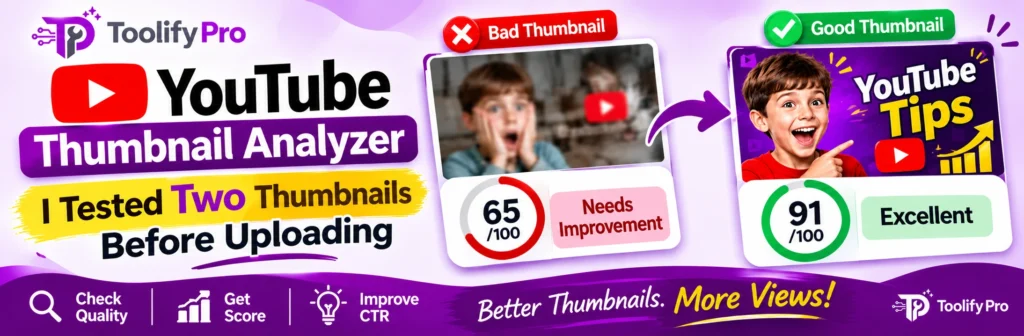
- Thumbnail second. Check it before you upload with the free YouTube Thumbnail Analyzer. A dark or blurry thumbnail loses clicks, even with perfect hashtags.
- Hashtags and description third. Generate the hashtags here, write the full description using the example above, then fill the hidden Tags box with the YouTube Tag Generator.
- Full check last. Run the free YouTube SEO Checker over your title, description, tags and hashtags before you publish.
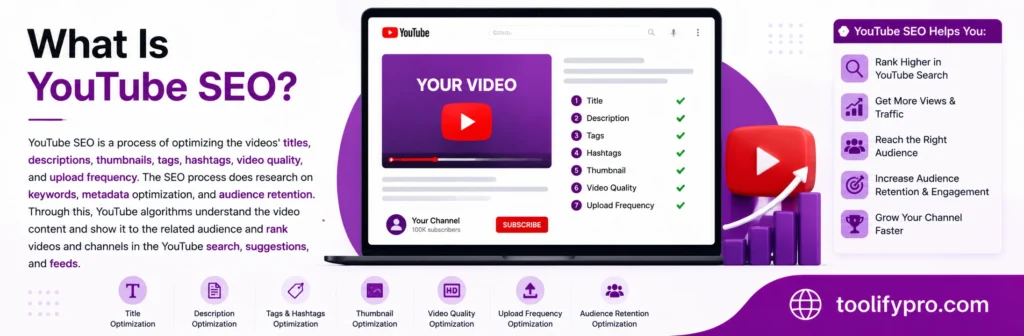
- Want the bigger picture first? Read What Is YouTube SEO? How It Works and Why It Matters. It explains, in simple English, how title, thumbnail, description, tags and hashtags all fit together.
Frequently Asked Question
Is the YouTube hashtag generator really free?
Yes — completely. On ToolifyPro it is 100% free, there is no sign-up, and you can use it as many times a day as you like.
How many hashtags should you put on one video?
Use 3 to 5 relevant ones. YouTube shows up to 3 from your description next to your title, and over 60 means all of them get ignored. A few right ones help far more than a long loose list.
Do hashtags really help a video get more views?
They help YouTube link your video with other videos on the same topic, and they help viewers find related videos. That puts you in front of the right people. But no hashtag guarantees views. Topic, title, thumbnail and the video itself matter more — so don’t trust any tool that promises viral views from hashtags alone.
What is the difference between hashtags and tags?
Hashtags are visible and clickable, in your title or description. Tags are hidden in YouTube Studio, and mainly help when a word is often spelled wrong. You need both — just in their own places. The table earlier in this guide shows it side by side.
Can you use the same hashtags on every video?
Only when every video really is on the same topic — one series, for example. For different topics, generate new hashtags from each new title. The same set on different topics quickly becomes misleading.
Try it on your next video
Don’t start with an old video. Start with the next one you are about to upload. Copy your final title. Paste it into the YouTube hashtag generator. Pick your best 3, and put them on the last line of a full, honest description — like the example in this guide.
That takes under a minute. And it beats guessing at the last second, every time.
Need a stronger title first? Try the free YouTube Title Generator, then come back and generate hashtags for that title.
Sources
- YouTube Help — Find playlists & videos using hashtags — the hashtag rules, the up-to-3 display, no spaces, and the over-60 rule.
- ToolifyPro — YouTube Hashtag Generator — the tool’s steps, tone and language options, and its free, no sign-up use.