Introduction- Free Comma Separator vs Excel TEXTJOIN
When you are working on the large list of data, but the data is messy, such as ID, name, email, product name, product ID, product price, etc., and your task is to separate each data point, there are probably two choices: go with the free online comma separator tool or use the Excel “TEXTJOIN” formula. While we were discussing it verbally, it sounded like both choices solved the same problem, but practically, both feel different. In this article, we discussed and checked which option is more efficient and easy to use for everyone.
Table of Contents
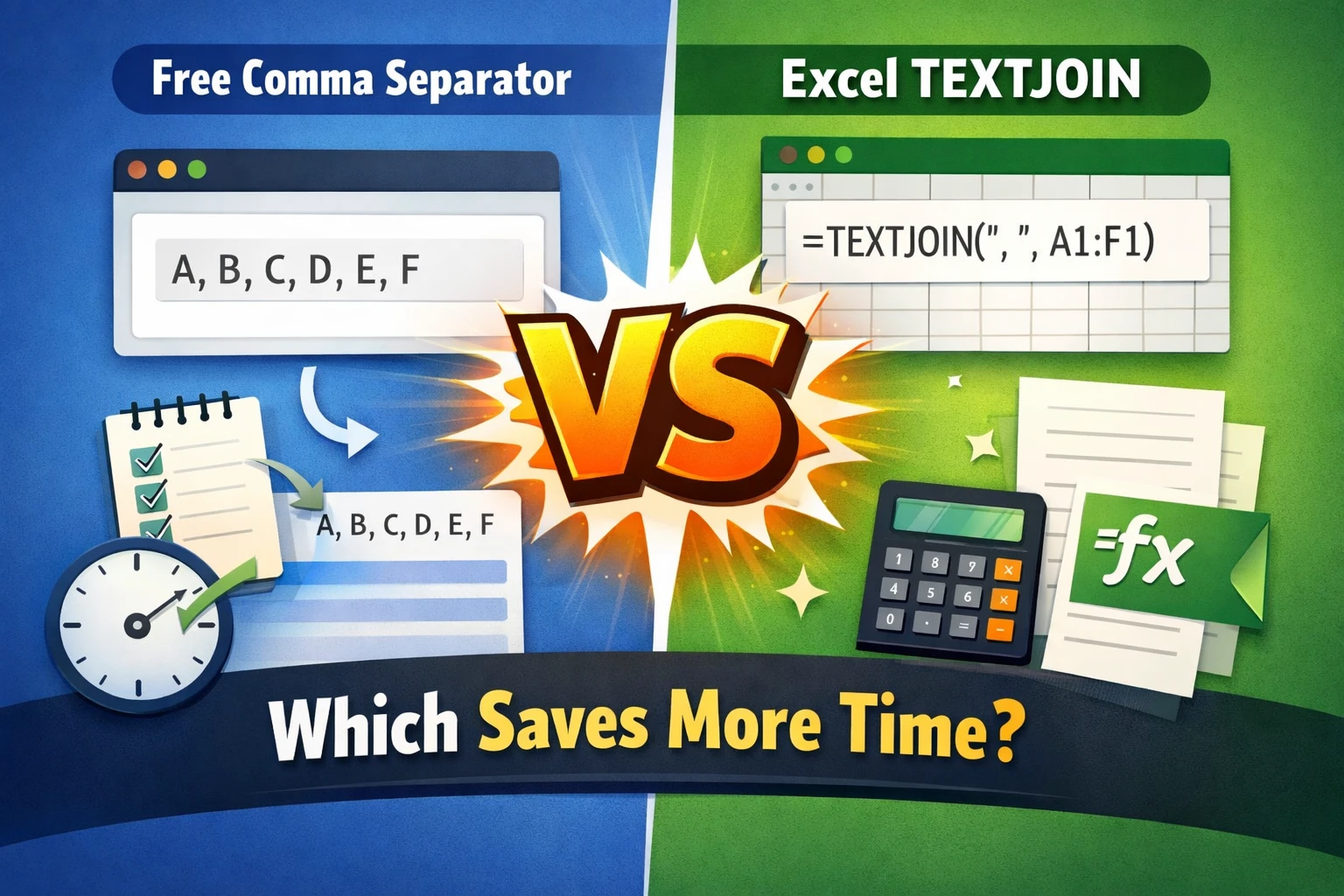
The Real Problem: It’s Not About Commas
What is the real problem we face while separating the data? It’s not actually a comma; it’s time and friction. While doing this task, users are mostly focused on quick results, zero confusion, and no extra spaces, while this simple task becomes hectic and time-consuming when no proper steps are followed.
What Is a Free Comma Separator Tool?
A comma separator is a simple online tool that adds the comma between values to separate the word, line, and values data. Tools like that are designed to improve productivity and speed when separating the values manually will take time. On the other hand, these online comma separator tools do the same task within a few seconds.
Typical use cases:
- SEO keywords
- YouTube tags
- Email lists
- Programming values
- CSV-style formatting
These are only a few cases that required comma-separated values; there are many other ways where we have to make our column data into a comma-separated, one-line list.
What Is Excel TEXTJOIN?
TEXTJOIN is a built-in formula in the latest Microsoft Excel version that combines the column value in a single cell using a delimiter such as a comma, semicolon, space, or quotes, etc.
This is a powerful and flexible formula to perform operations on large data sets, but beginners might face issues while applying it to data and require training or experience.
A basic example:-
=TEXTJOIN(",", TRUE, A1:A20)

A
free comma separator
comma separator online
excel TEXTJOIN function
TEXTJOIN vs comma separator
free comma separator vs excel textjoin
online comma separator saves time
faster alternative to excel textjoin
how to add commas without excel
comma separator tool for beginners
textjoin function time saving comparison

Results: free comma separator,comma separator online,excel TEXTJOIN function,TEXTJOIN vs comma separator,free comma separator vs excel textjoin,online comma separator saves time,faster alternative to excel textjoin,how to add commas without excel,comma separator tool for beginners,textjoin function time saving comparison
When is TEXTJOIN useful?
- The data sets are already stored in structured format.
- When you have experience working on large data.
- need to write a macro, or the user has time to do the same task repetitively.
Time Comparison: Real-World Scenarios
Let’s start the time comparison between Excel and the online comma separator tool.
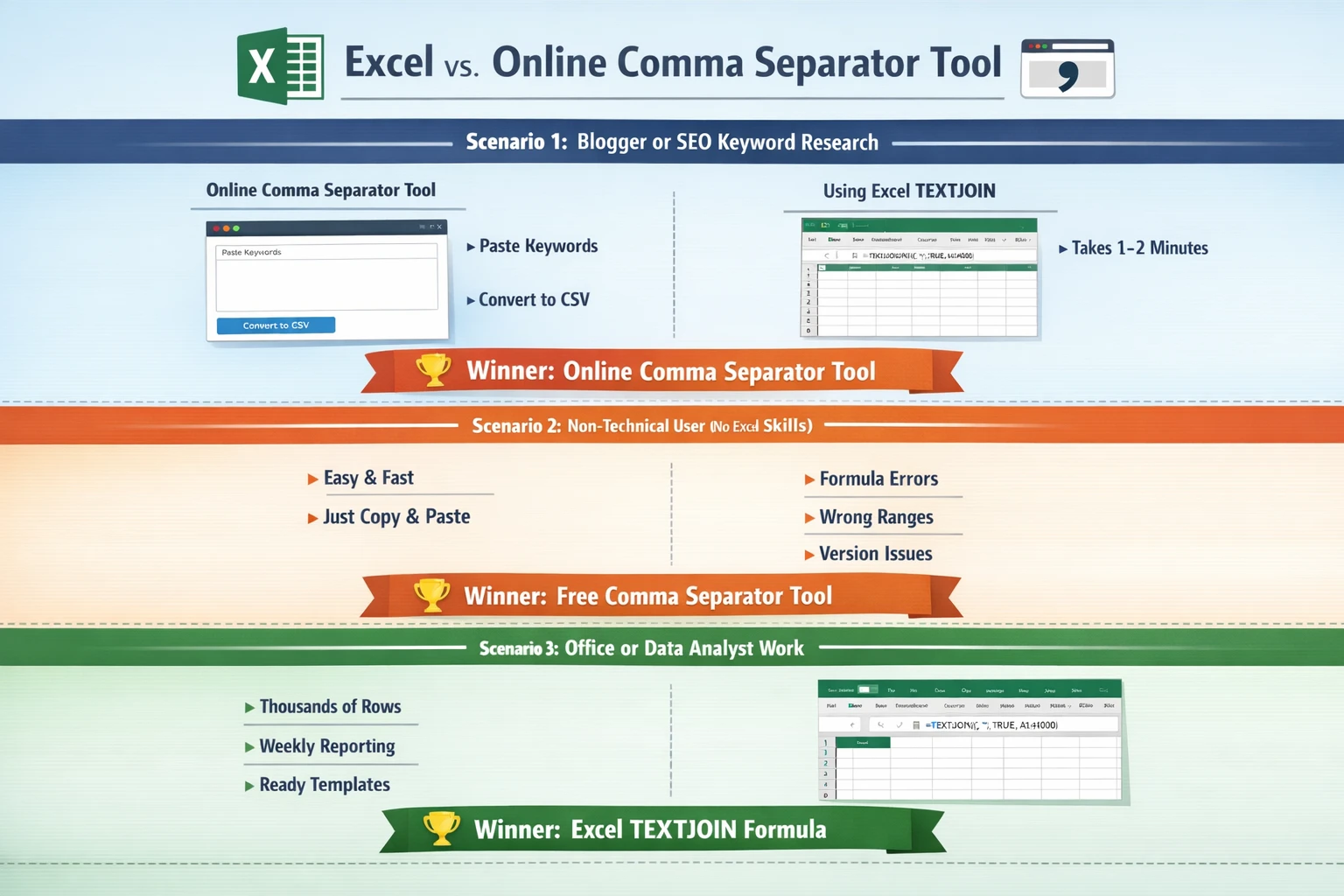
Scenario 1: Blogger or SEO Keyword Research
You have a list of 50 top keywords; you want to add them to your blog, but first you have to convert them into comma-separated values. Which method is efficient for this task?
Online comma separator:
- Open the online comma separator or delimiter tool.
- Paste the list of keywords in the tool.
- Click convert.
- Takes only 5-10 seconds.
Using Excel TEXTJOIN
- Open Excel
- Paste keywords in the column
- Ensure correct cells
- Write the formula and select the correct column
- Fix errors (if any).
- Copy output
- It may take 1–2 minutes.
After working with both options, it has been found that the online comma separator tool is the winner; it generates results faster than Excel.
Scenario 2: Non-Technical User (No Excel Skills)
Let’s take a real-world example; not everyone is familiar with Excel formulas, especially beginners.
The issue beginners face while using the “TEXTJOIN” formula.
- Formula errors—if there is any single syntax error, the formula will not work.
- Wrong ranges—if the user selects the wrong data range, the wrong output comes.
- Missing Excel version support—older versions do not support the TEXTJOIN function required for the latest version.
The delimiter tool is a simple tool that requires zero knowledge; just work on copy-paste and you’re done.
So here in the Free Comma Separator again, we win the race.
Scenario 3: Office or Data Analyst Work
If you are a working professional and doing repeated tasks daily in the office, then you must have the ready-made template.
Work on:
- Thousands of rows
- Regular reporting
- Same task repeated weekly
- Gaining experience and excelling is a simpler option.
In that case, the Excel TEXTJOIN formula is the winner because the user has experience and the template to do the same task easily daily.
Mental Load: The Hidden Time Killer
While focusing on productivity at the office, each second counted in offices when doing repeated tasks. So when you use the TEXTJOIN function on a daily basis, then the formula may be faster, but if you transfer the same task to another guy, then it becomes slower and the comma separator tool becomes faster.
TEXTJOIN demands:
- Correct syntax
- Minimize errors
- Technical mindset
Comma separator tools demand:
- Paste
- Click
- Done
Less thinking = faster work.
Device & Accessibility Advantage
Let’s check which option is easier and more accessible to use.
Free Comma Separator
- Web-based work in mobile
- Web-based work on tablets
- No need to download Excel on mobile.
- supported by every operating system
Excel TEXTJOIN
- Dependent on Excel
- Not available in all Excel versions
- Only work on computers, not mobile-friendly
- Slower the online tool
If you work from:
- Cyber cafes and online tools are best.
- Office systems then ms exceo option may be best for experienced and familiar
- Mobile devices: online tools are the best option.
In the final words, it has been found that most of the cases of the online Comma Separator tool are a winner.
Conclusion
In the conclusion, it has been found that the online comma separator is faster than the TEXTJOIN function because it does not require any skills or experience to separate the values; just copy, paste, and done, whereas the TEXTJOIN function requires prior experience to perform. Comma separation, there are lots of chances of syntax error, debugging issues, and compatibility issues; hence, if working from Office Excel is best for the rest, the online tool is the best option.