

Introduction
Excel is Microsoft Corporation’s spreadsheet software, which is widely used for managing and analyzing data. Users can import data from CSV files, websites, or from the database, but many times an issue occurs where data is inserted in a single cell or in a single column, which later has to be separated. The manual process can take a long time and is difficult to separate the comma-separated values.
In the article we will learn how to separate comma separated values in Excel using various methods, and in the bonus we will use an online comma separator tool to compare which is faster and easier.
Table of Contents
Method 1: How to separate comma separated values in Excel using Text to Columns
This is the Excel Easy method to separate the comma-separated data into columns. This method will let you know the step-by-step process to convert the comma-separated data into separate columns.
1. Search for Microsoft Excel in your computer applications.
Open Microsoft Excel. Once opened, open the file that has the comma-separated values.
Example : “randon_comma_separated_data”
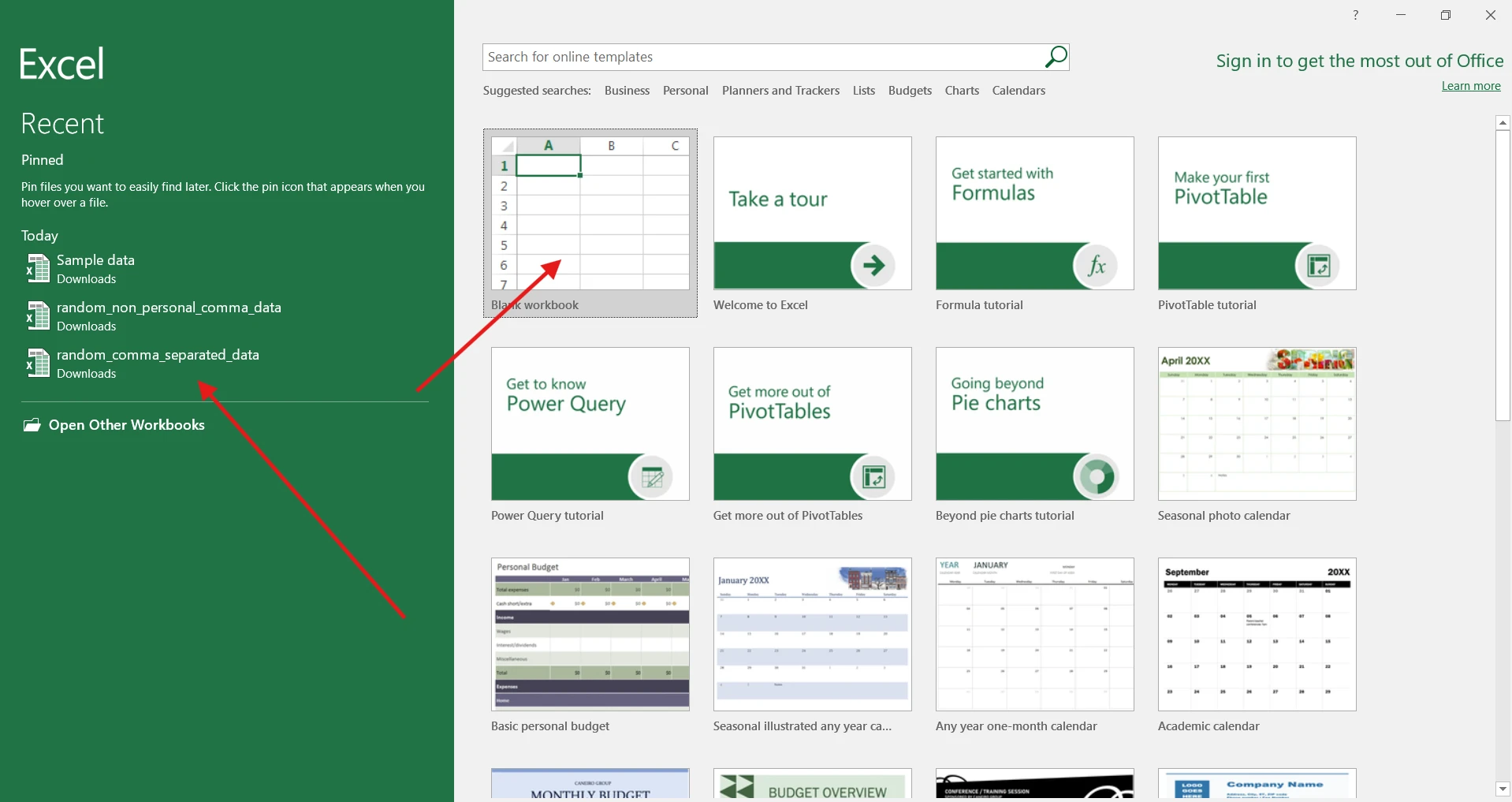
2. Select the column that contains comma-separated values and click on the Data tab in the ribbon.
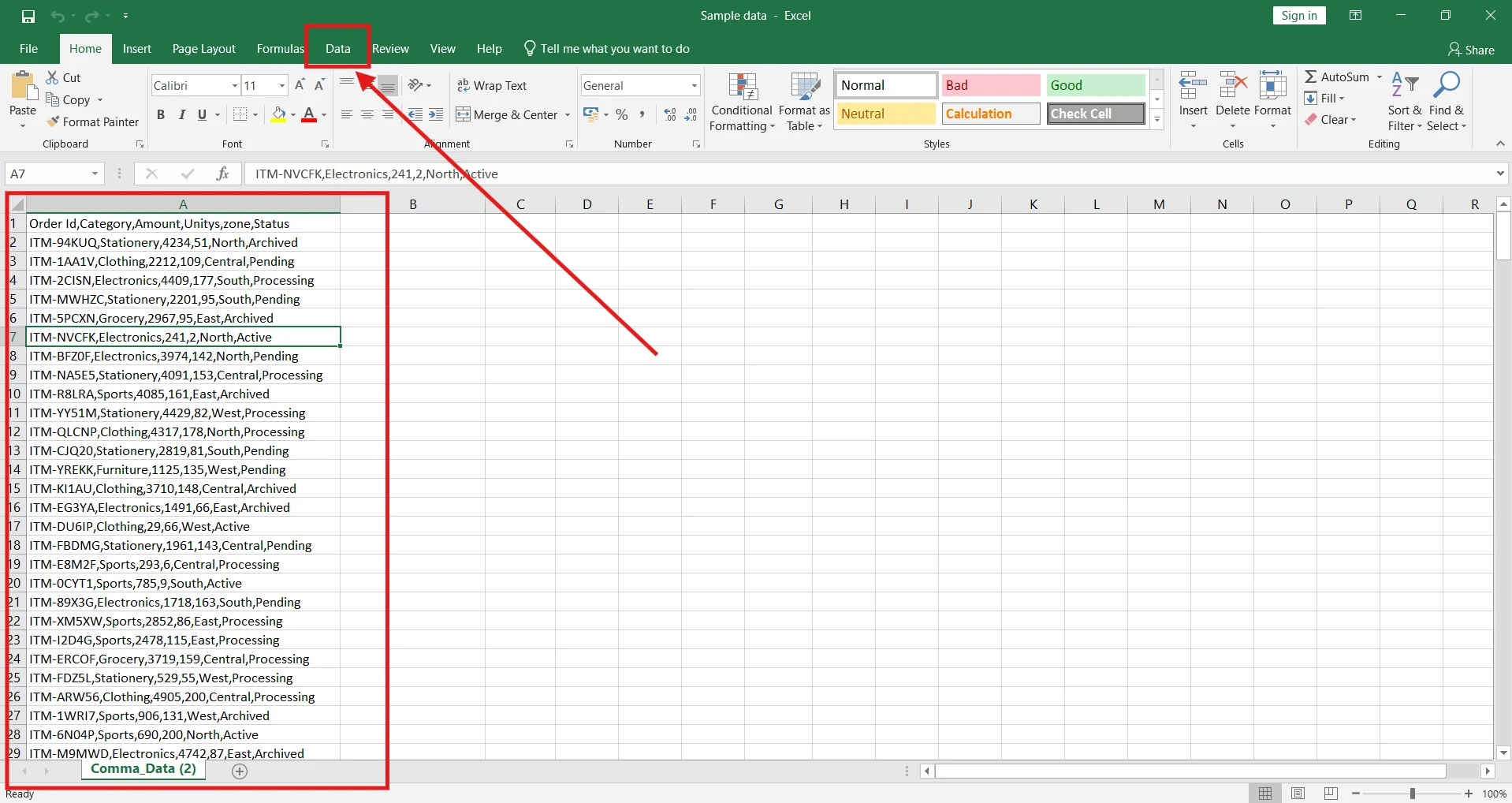
3. After clicking on the Data tab, you will see the Text to column in Data Tools.
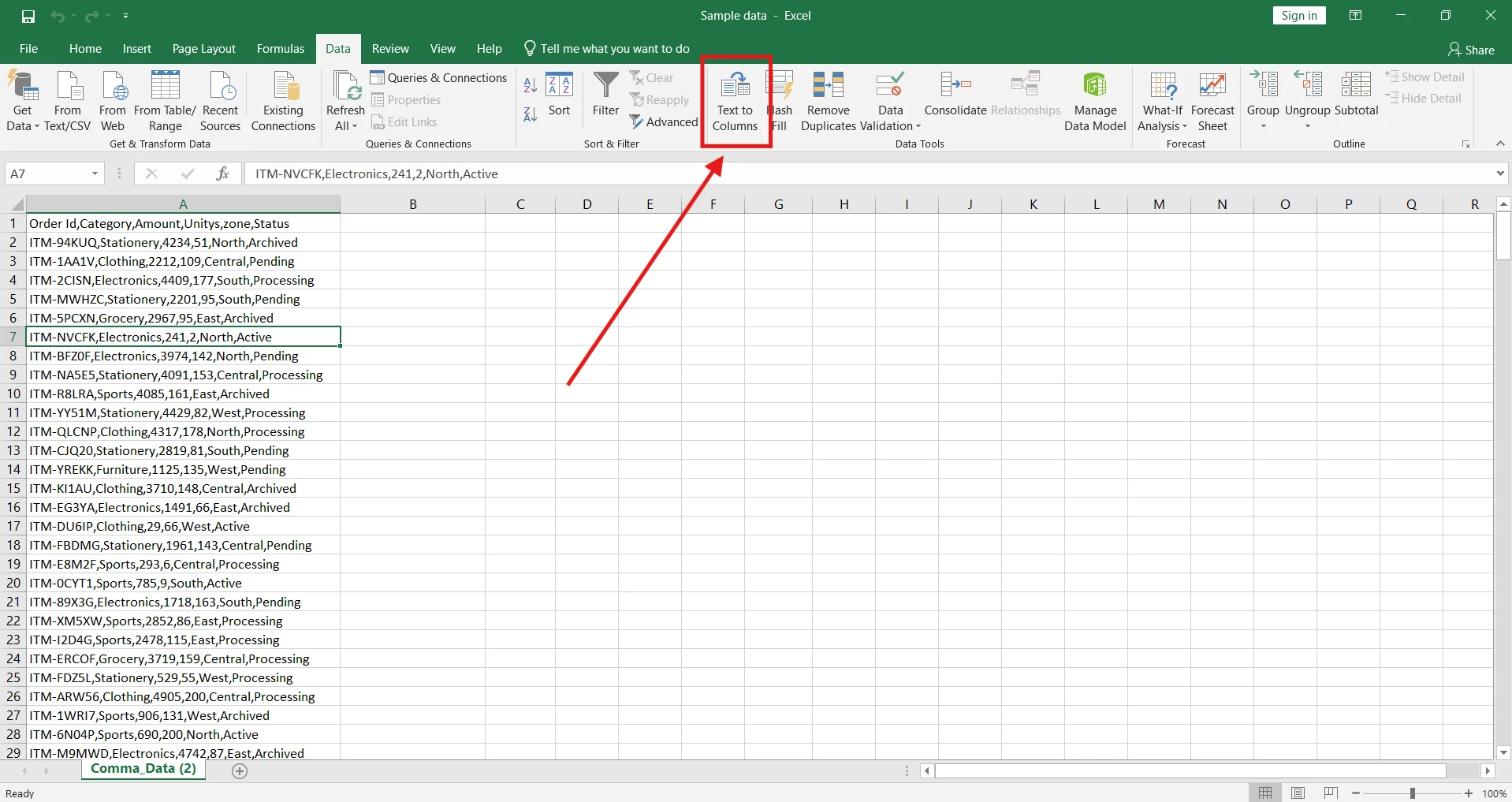
4. The dialog box will open; choose the Delimited radio button and click Next.
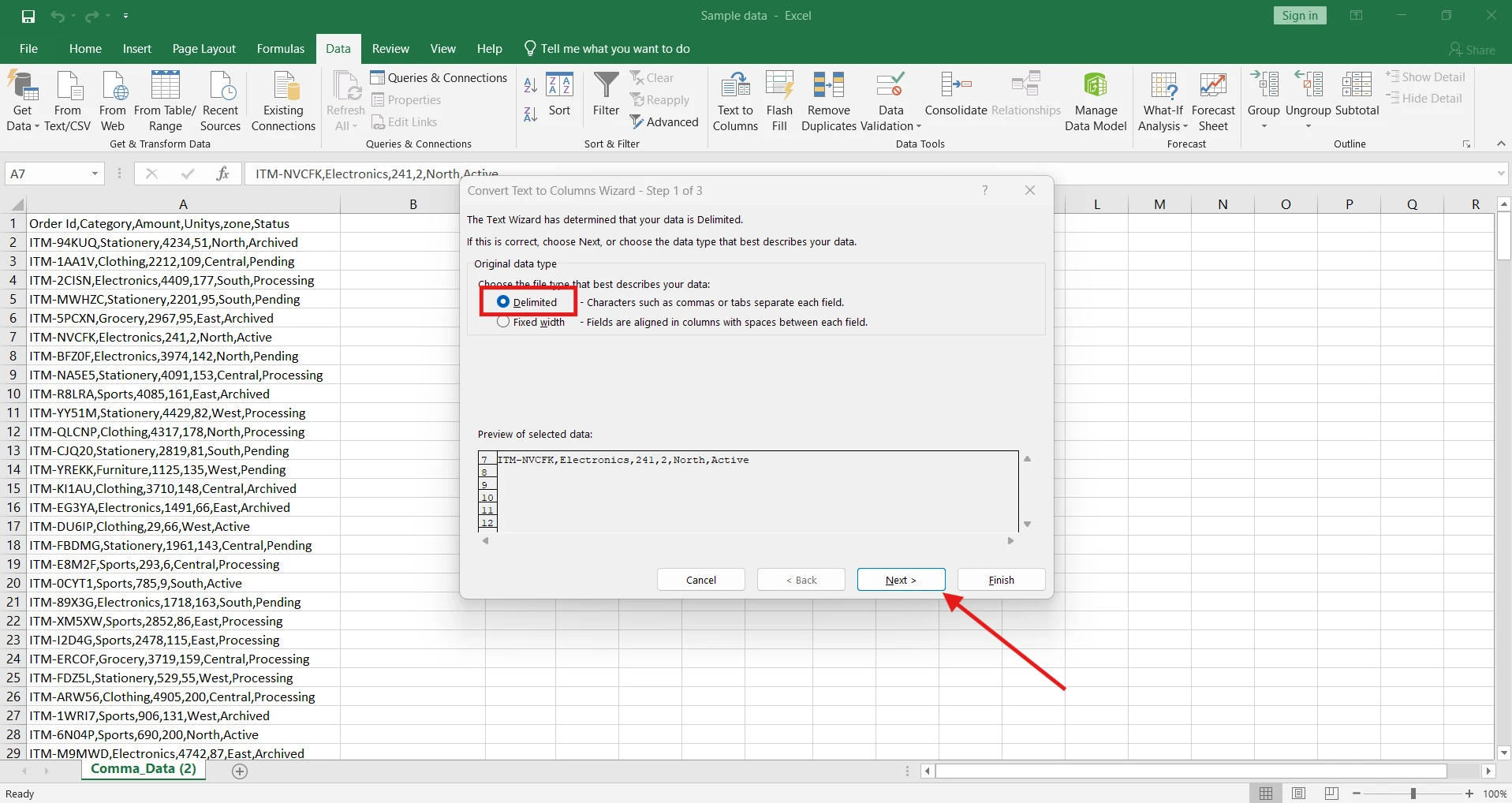
5. A new dialog box will open now; check the comma or other delimiter option and click Next.
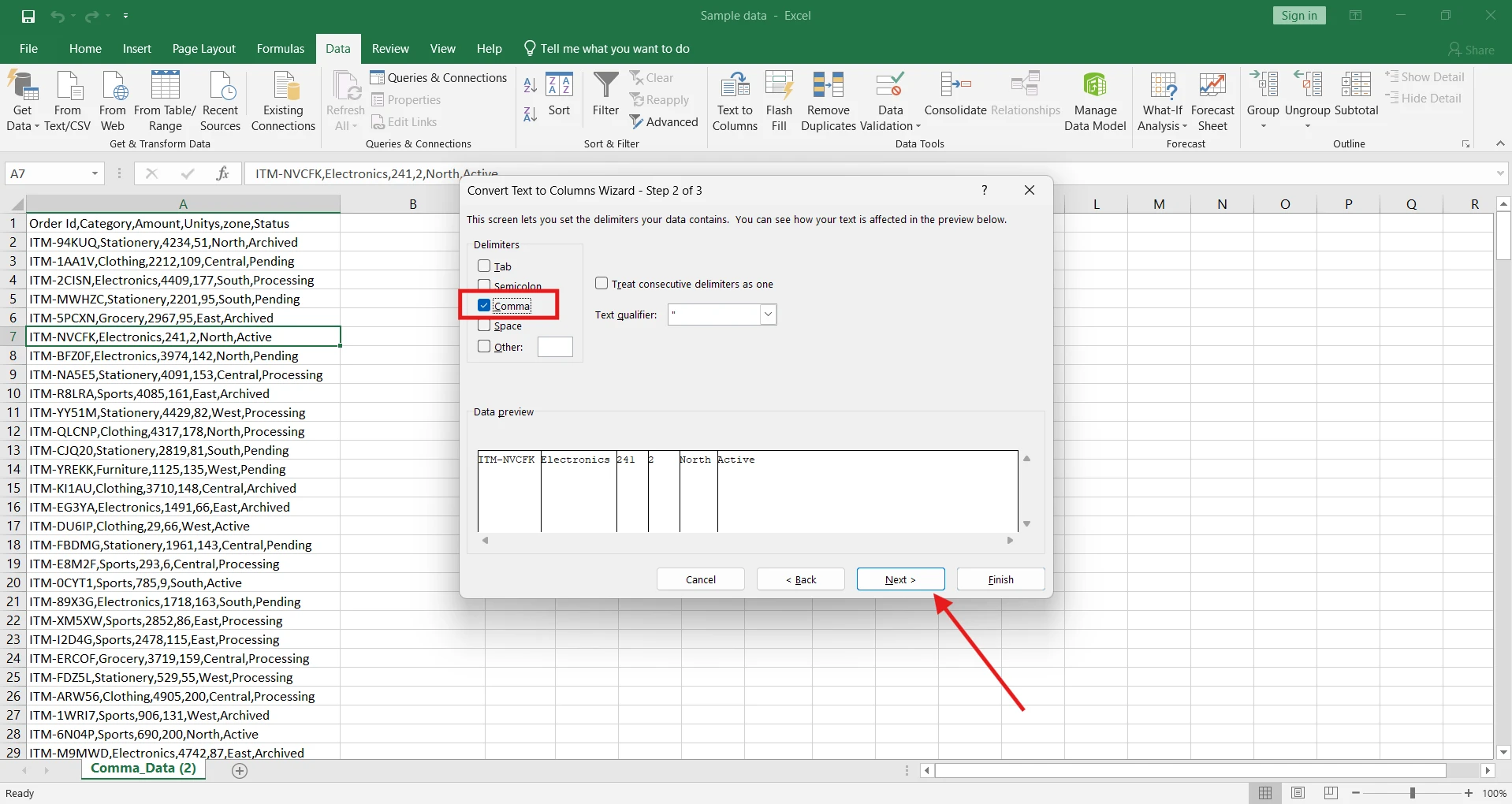
6. Again, a new dialog box will open; choose the general or data type you want and click Finish.
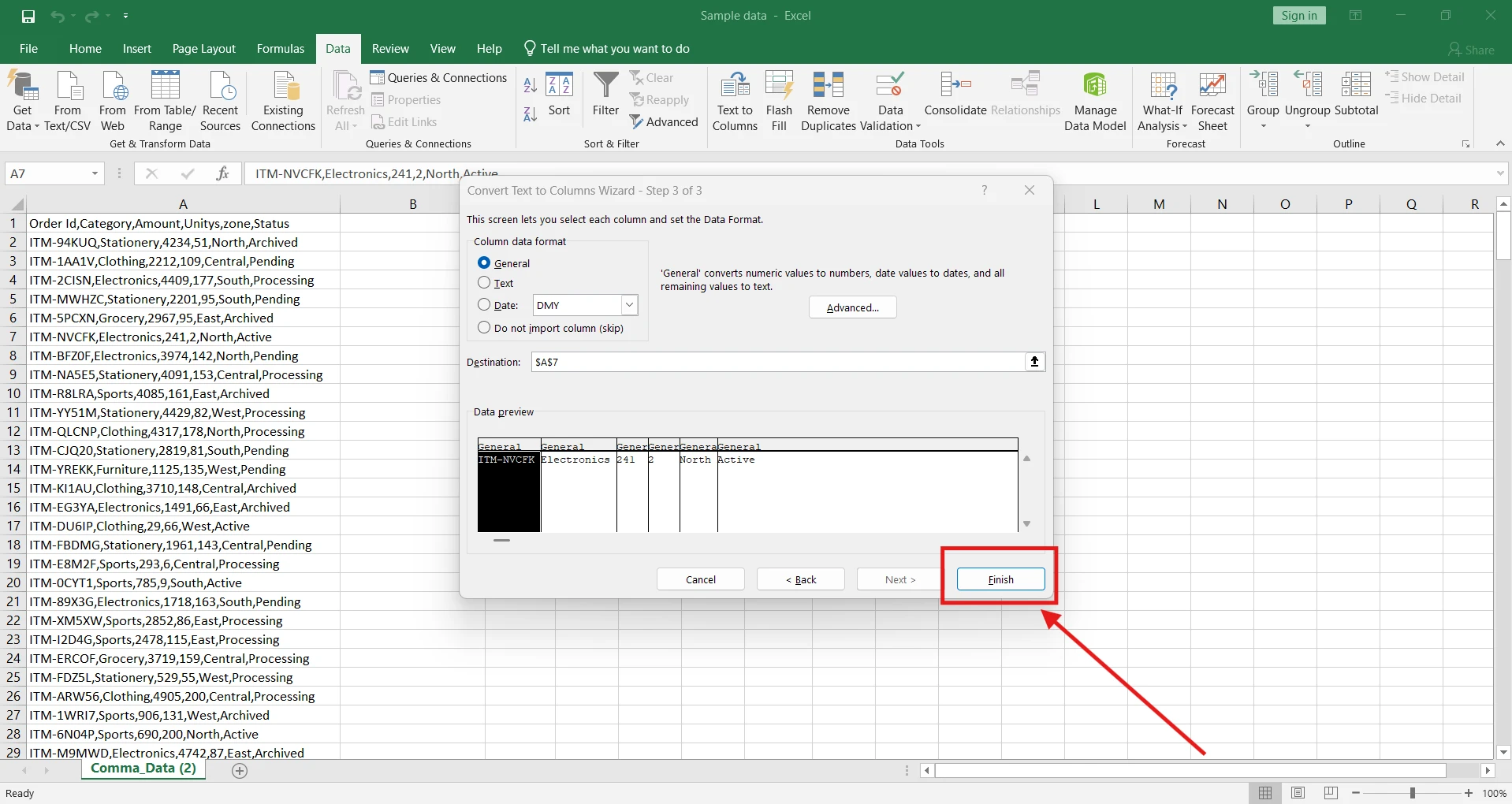
7. Your data has been separated into columns.
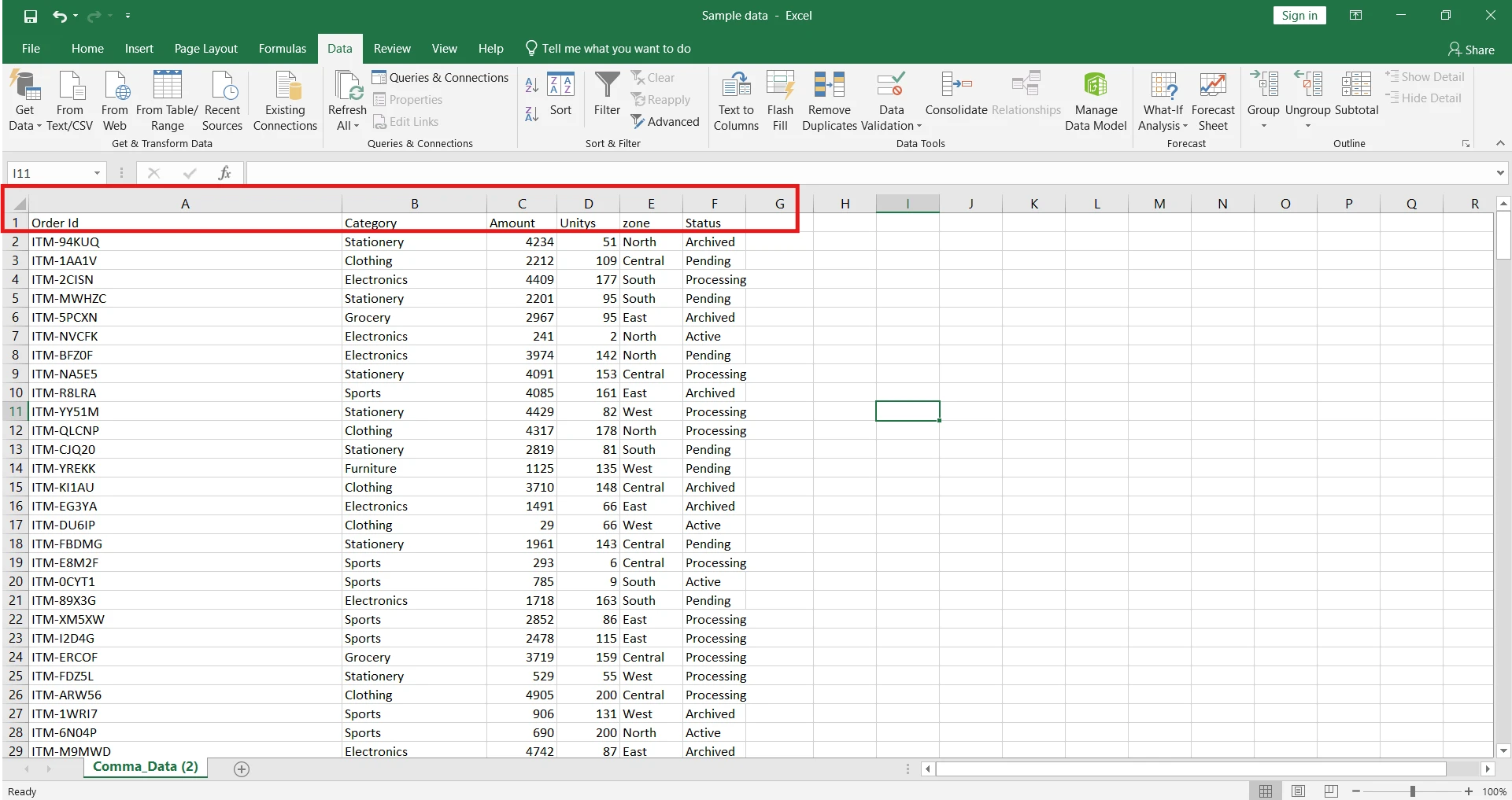
Method 2: How to separate comma separated values in excel using formula
The second method is for those who are familiar with Microsoft Excel; just follow the steps below to convert comma-separated values into columns.
Note: The Microsoft Excel 2021+ and 365 only support the “TEXTSPLIT ” function, but don’t worry; we built another formula method to do the same task in any Microsoft version.
1. Open the comma separated data in excel and enter the “TEXTSPLIT” formula.
Simply apply the formula given below if you are using Microsoft Excel 2021+ and 365 newer versions.
=TEXTSPLIT(A1,",")2. Using “TEXTSPLIT” alternate formula.
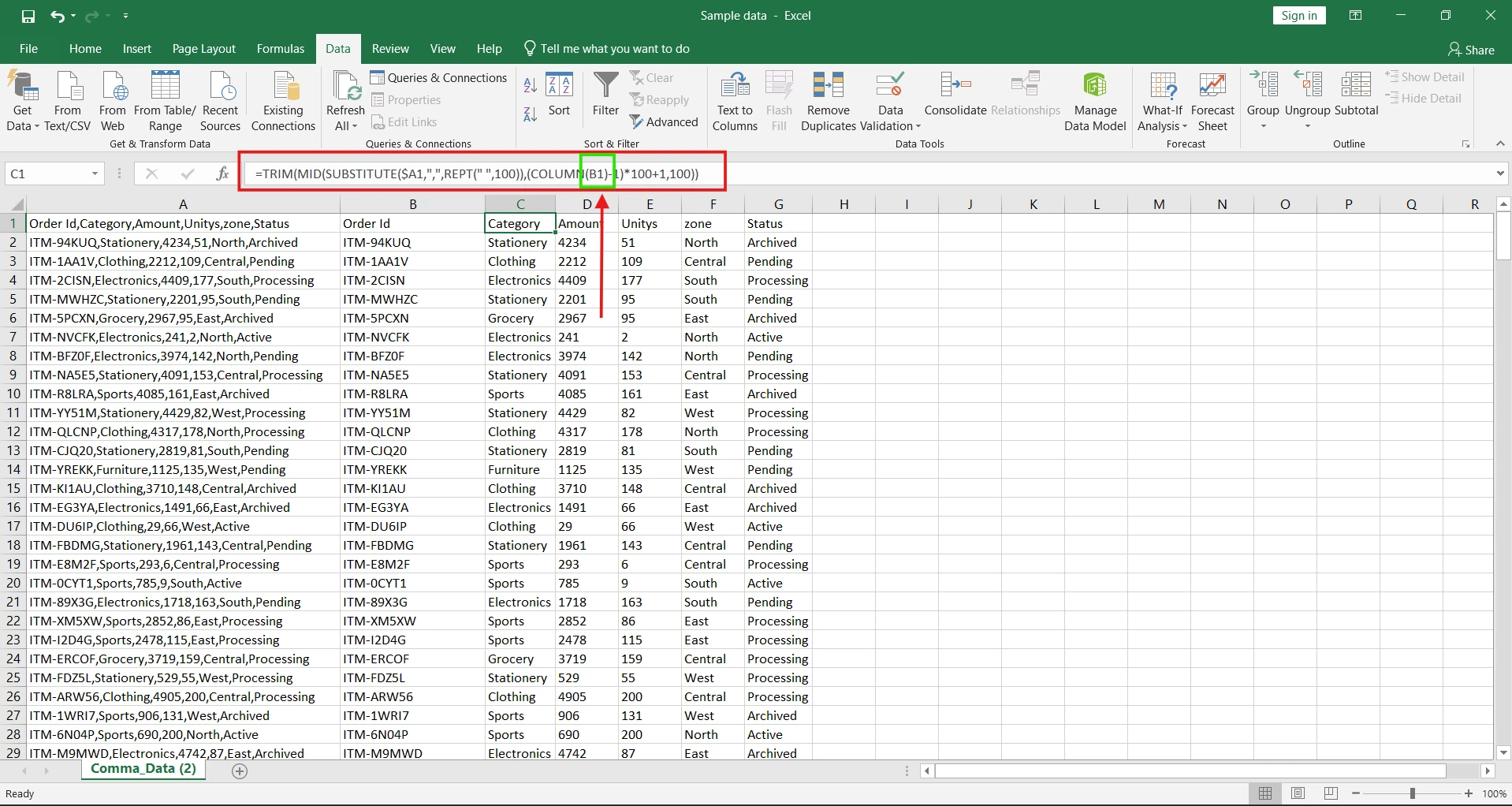
Just paste the below given formula in a blank cell in front of the data field and change the cell reference A1 to the cell that has data, and drag the formula on the right side to apply for each comma occurrence value as given the screenshot.
=TRIM(MID(SUBSTITUTE($A1,",",REPT(" ",100)),(COLUMN(A1)-1)*100+1,100))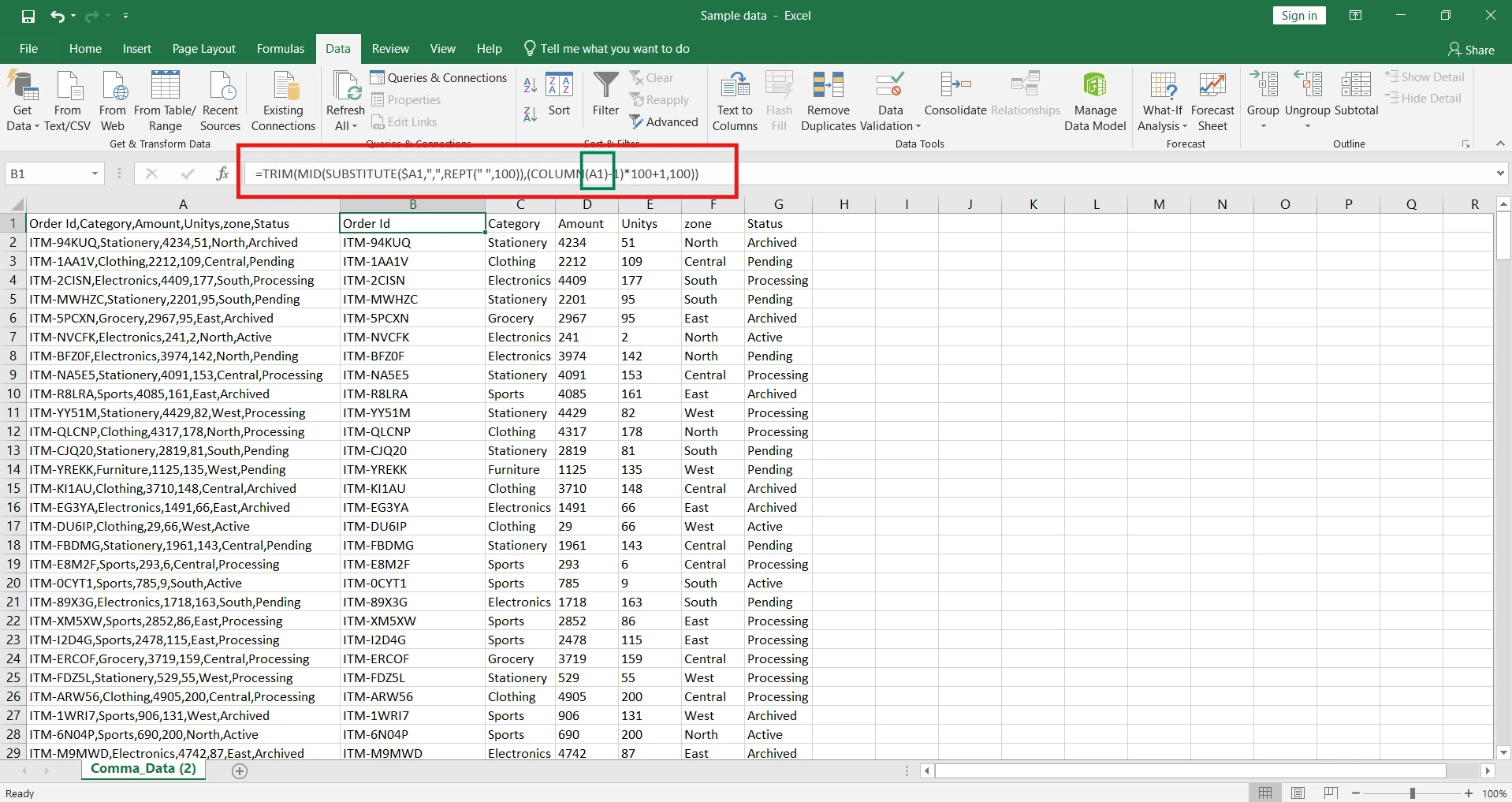
3. Changing cell references (!Important)
Note: The green-colored square is a B1 cell reference separate from each comma-separated value in the column.
Method 3: How to Separate Comma-Separated Values in Columns Using Power Query (Best for Large Data)
If you are working with a large data set and want to separate comma-separated values into columns, this method can help you solve your problems; just follow the steps given below.
1. Select your data and Go to Data
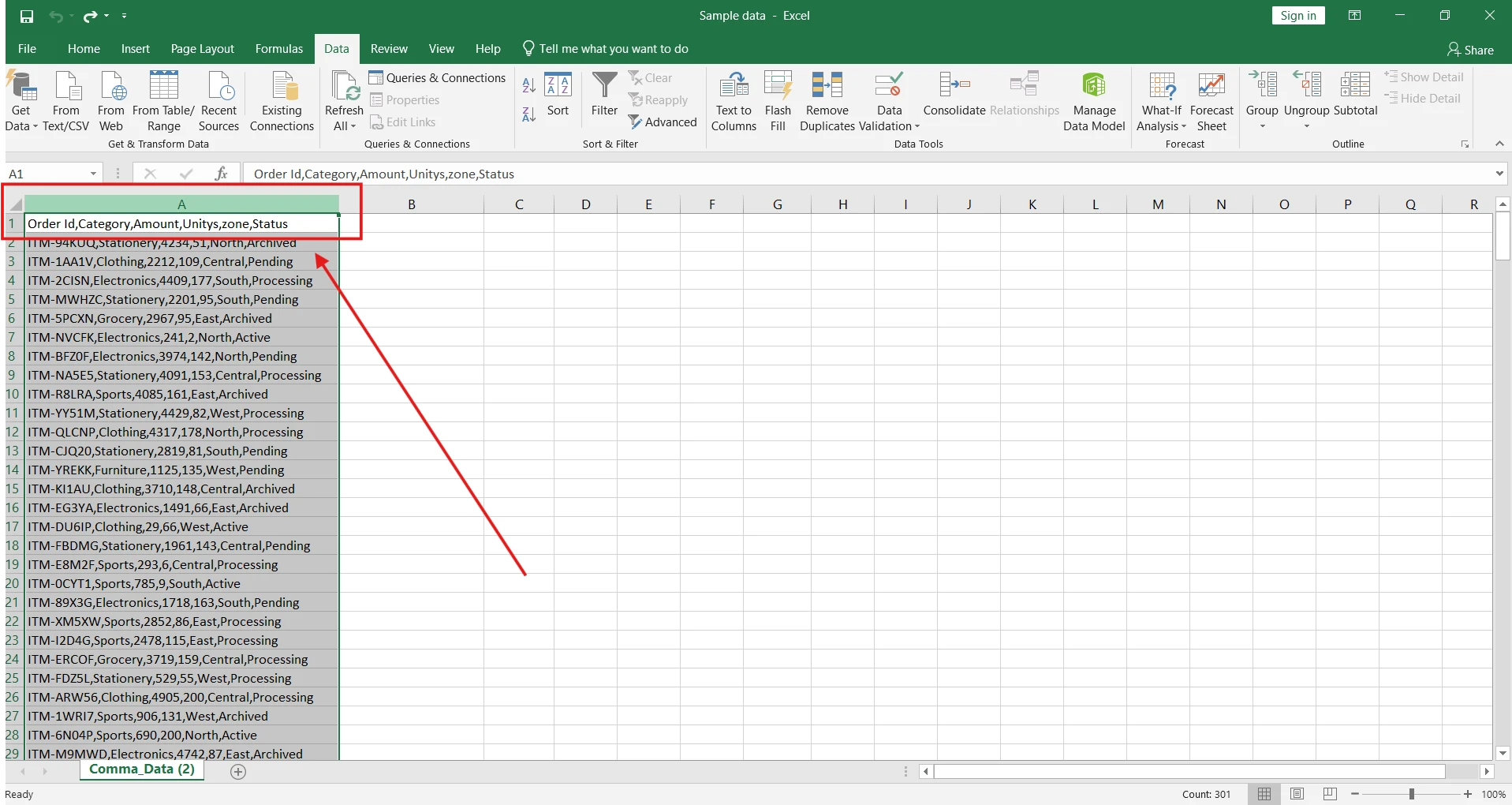
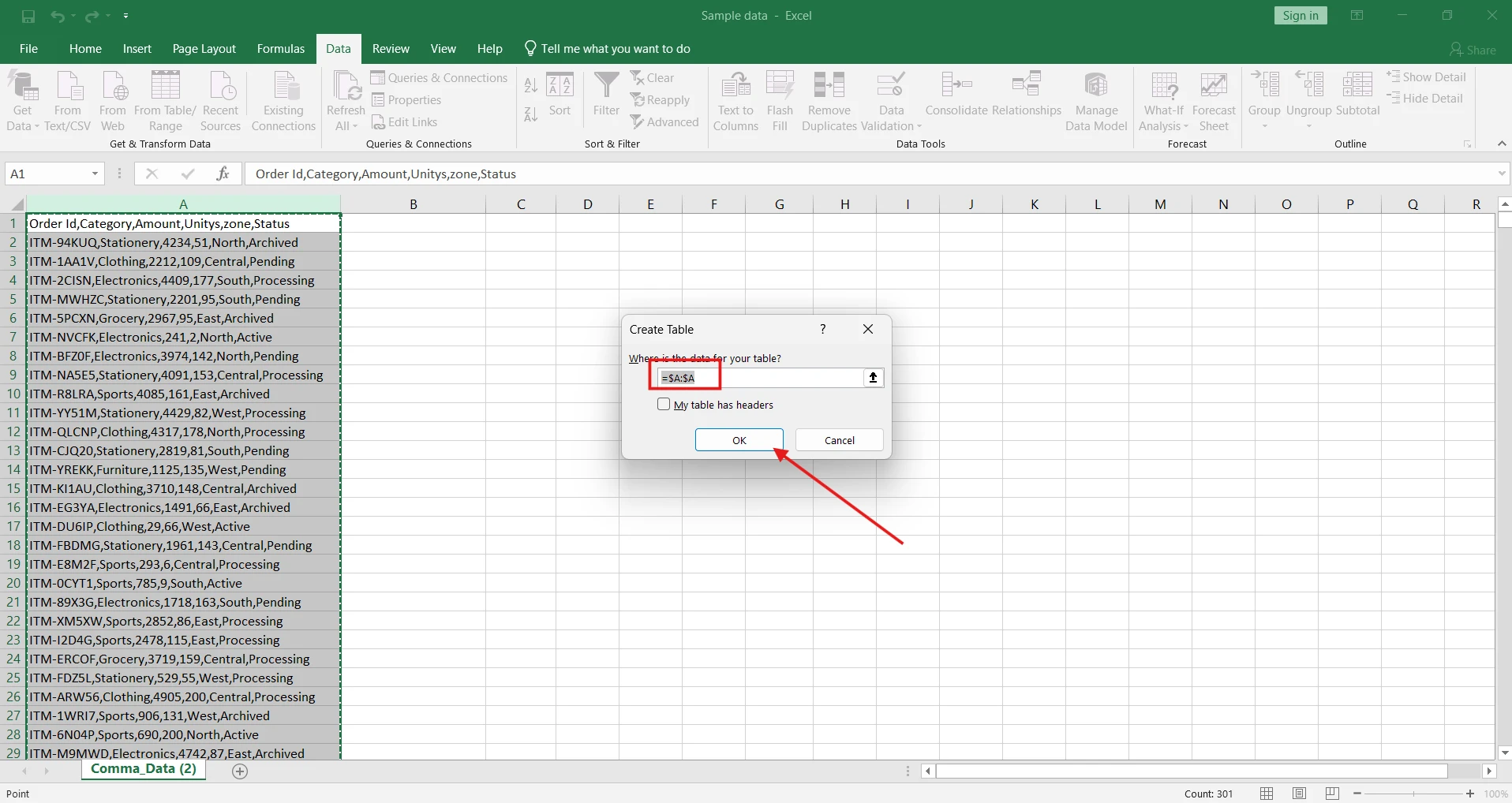
2. Click From Table/Range
The dialog box will open. Select the data range and click OK.
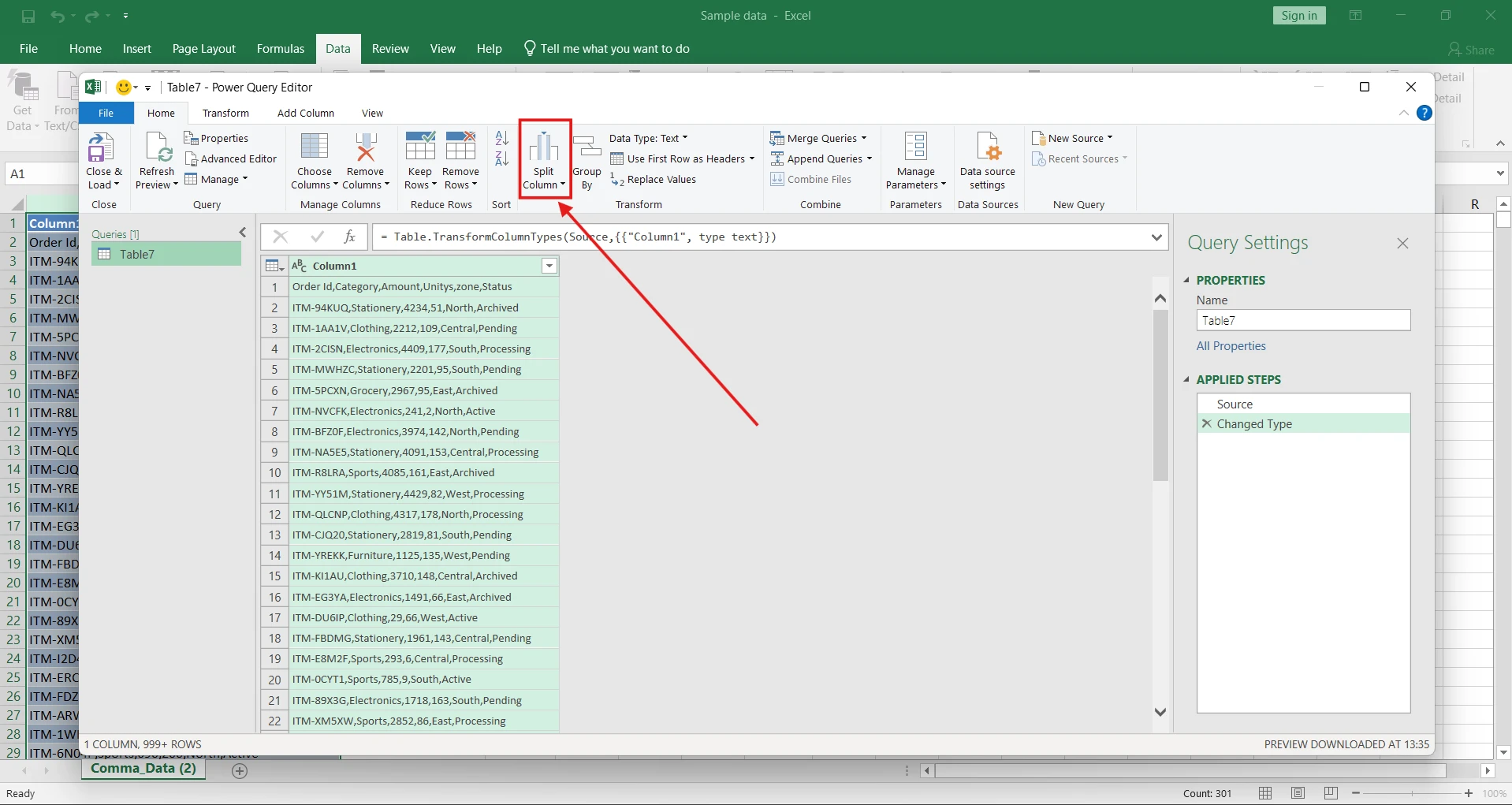
3. Power Query Editor will open
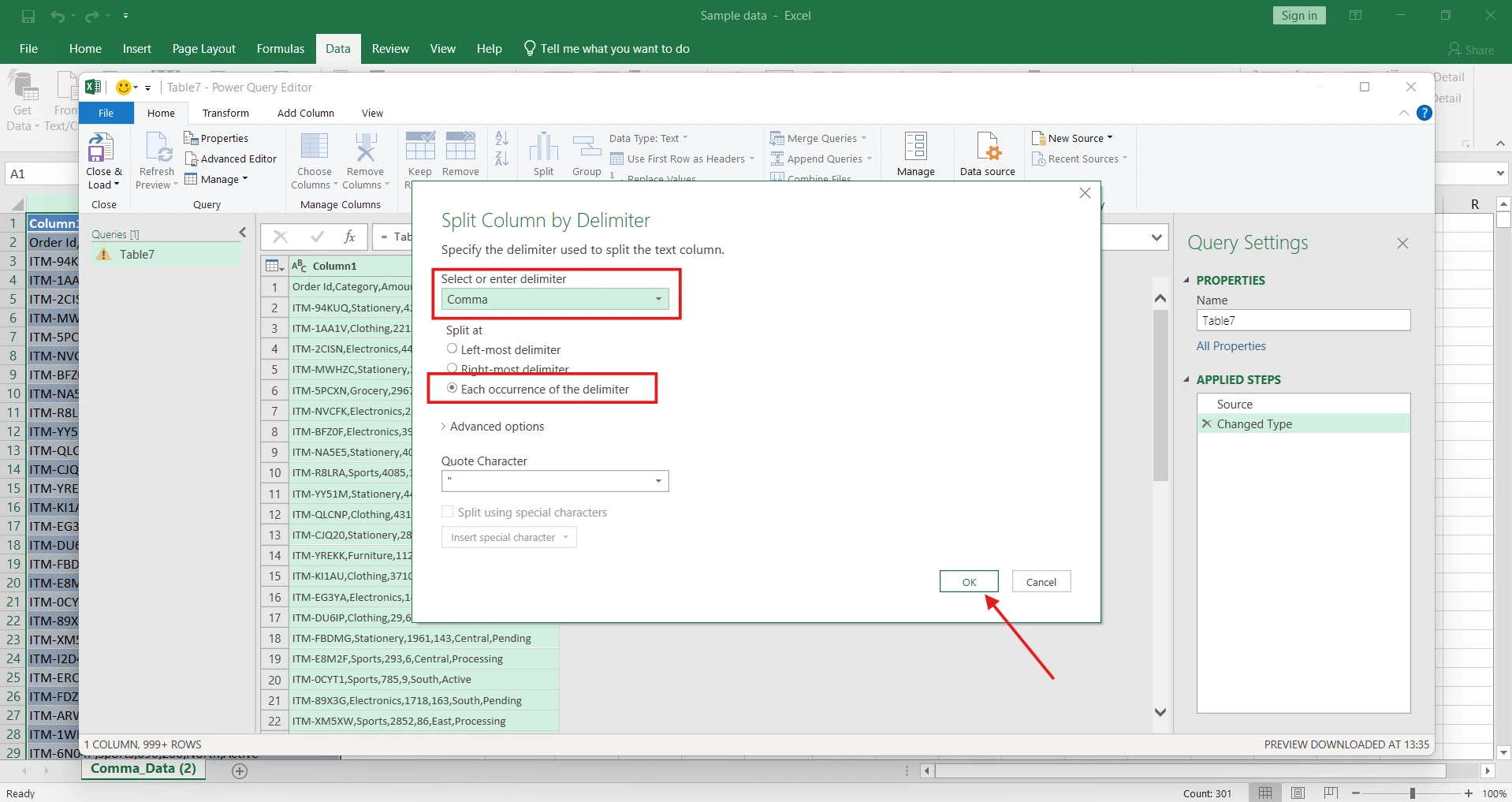
Now select Click Split Columns in the transform tab, and a new dialog box will open.
4. Choose By Delimiter and click OK
5. Create date header (optional)
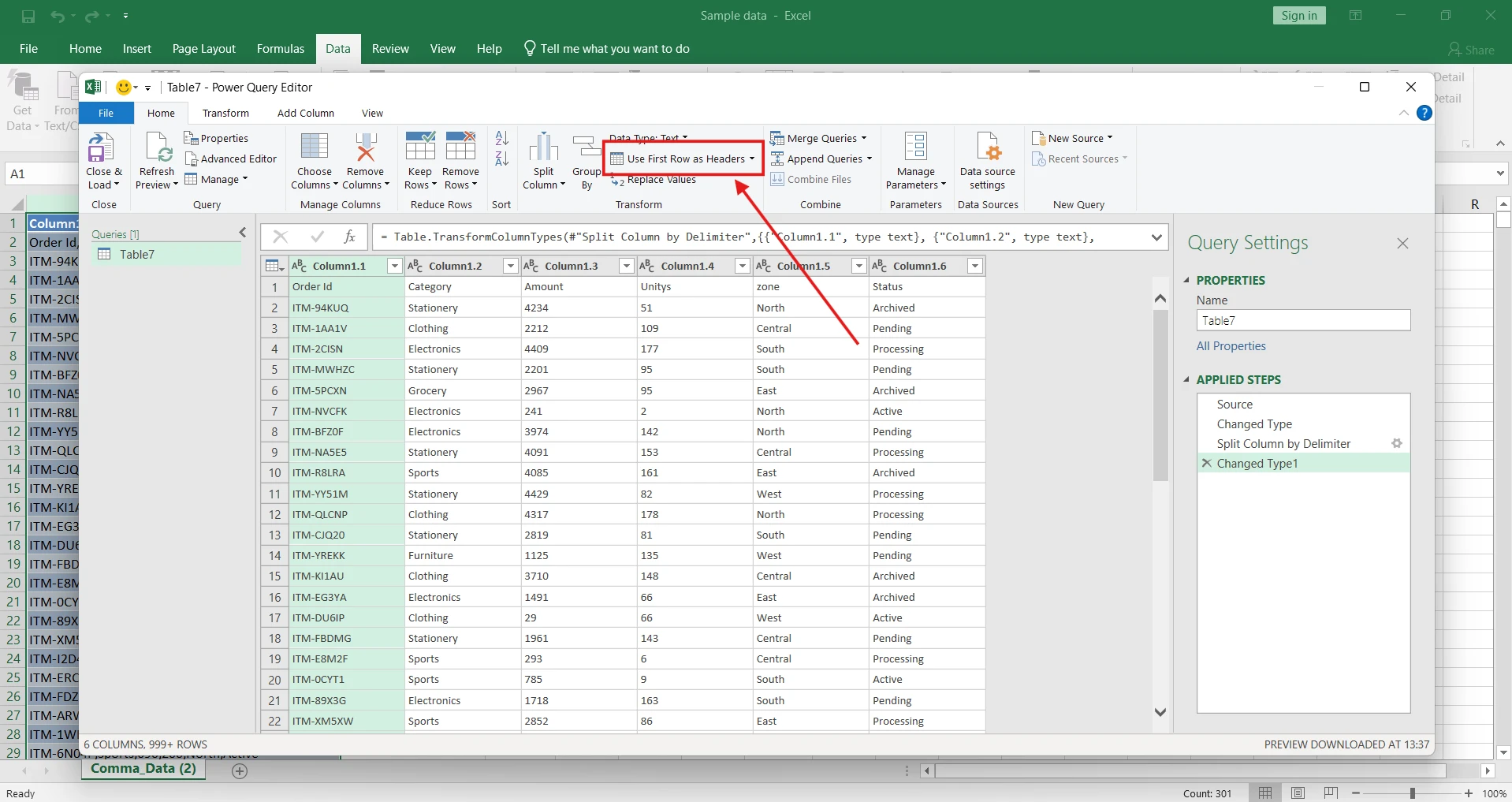
Click on the “use first row as header” if you want to make the first row of your data a heading.
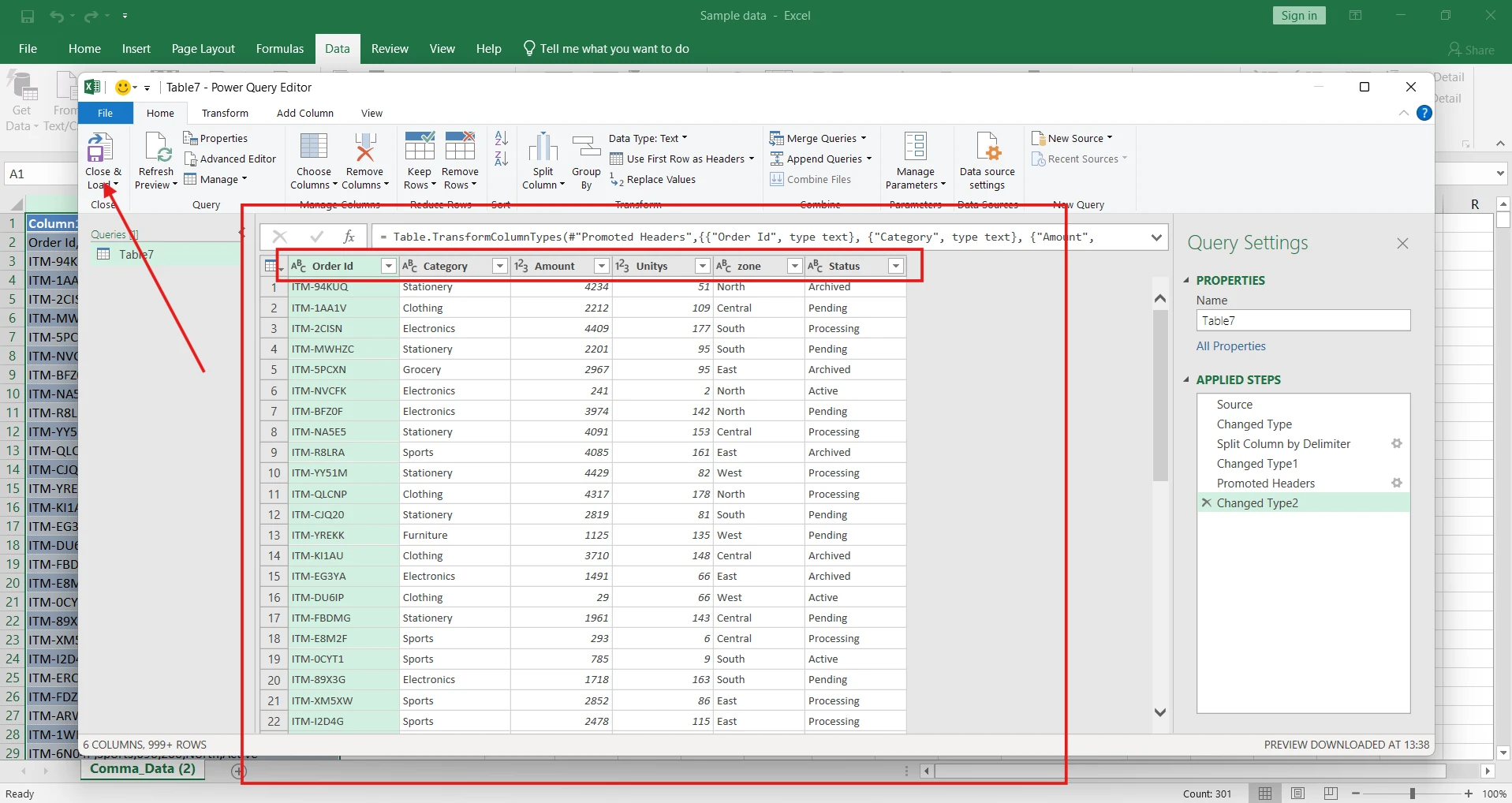
6. Click Close & load
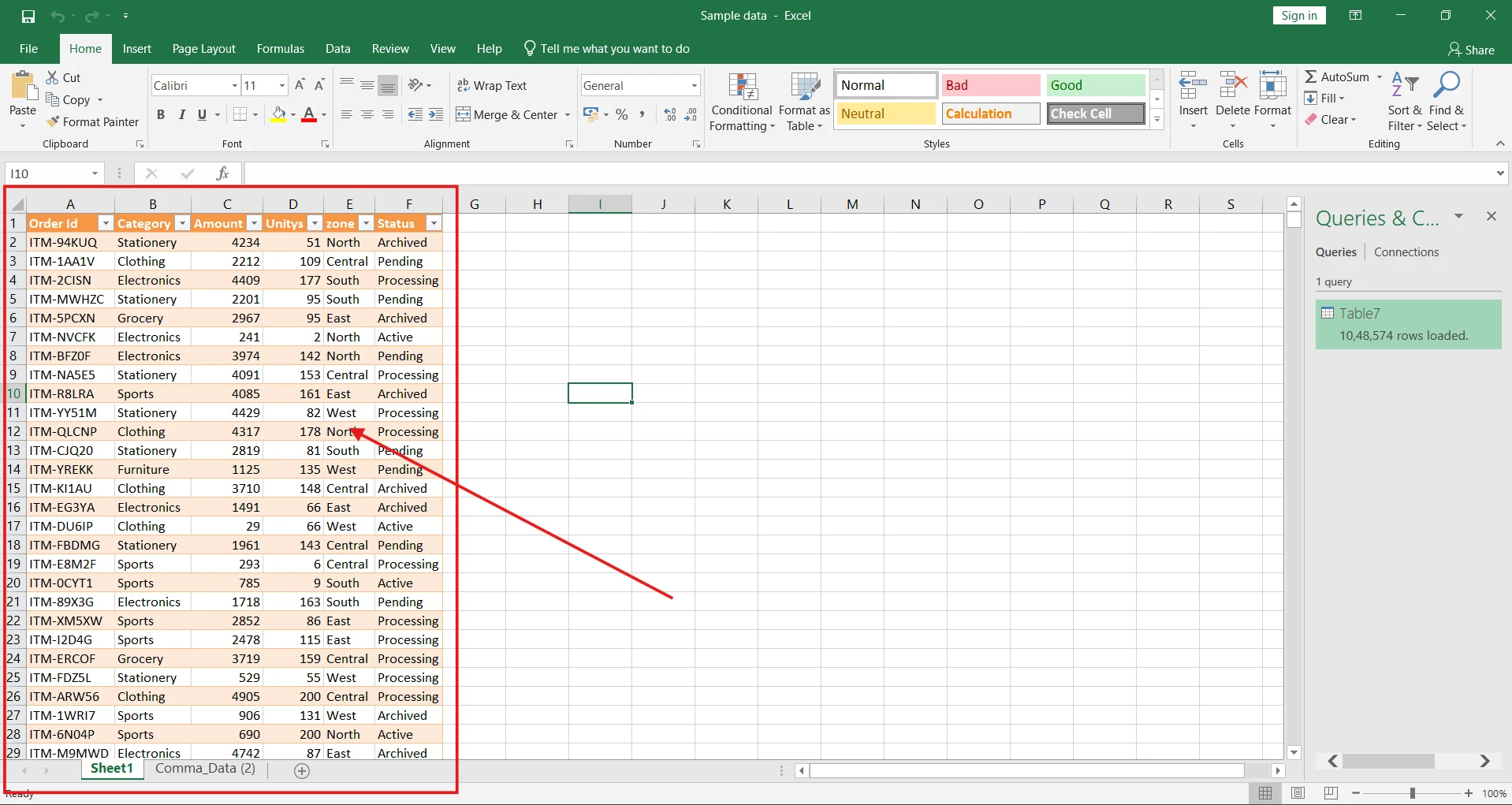
7. Output
Now comma-separated data has been separated into columns.
Method 4: VBA Code to Split Comma Separated Values into Columns in Excel
If you’re looking for a solution to automate the regular task, then this method is for you. We will learn how to write VBA (Visual Basic for Applications) code to comma-separate the values. This form of automation is a powerful method in Microsoft Excel to quickly separate multiple columns; this method is especially useful for large data sets. This step is not familiar for beginners experienced in writing VBA code.
1. Open the VBA (Visual Basic for Applications)
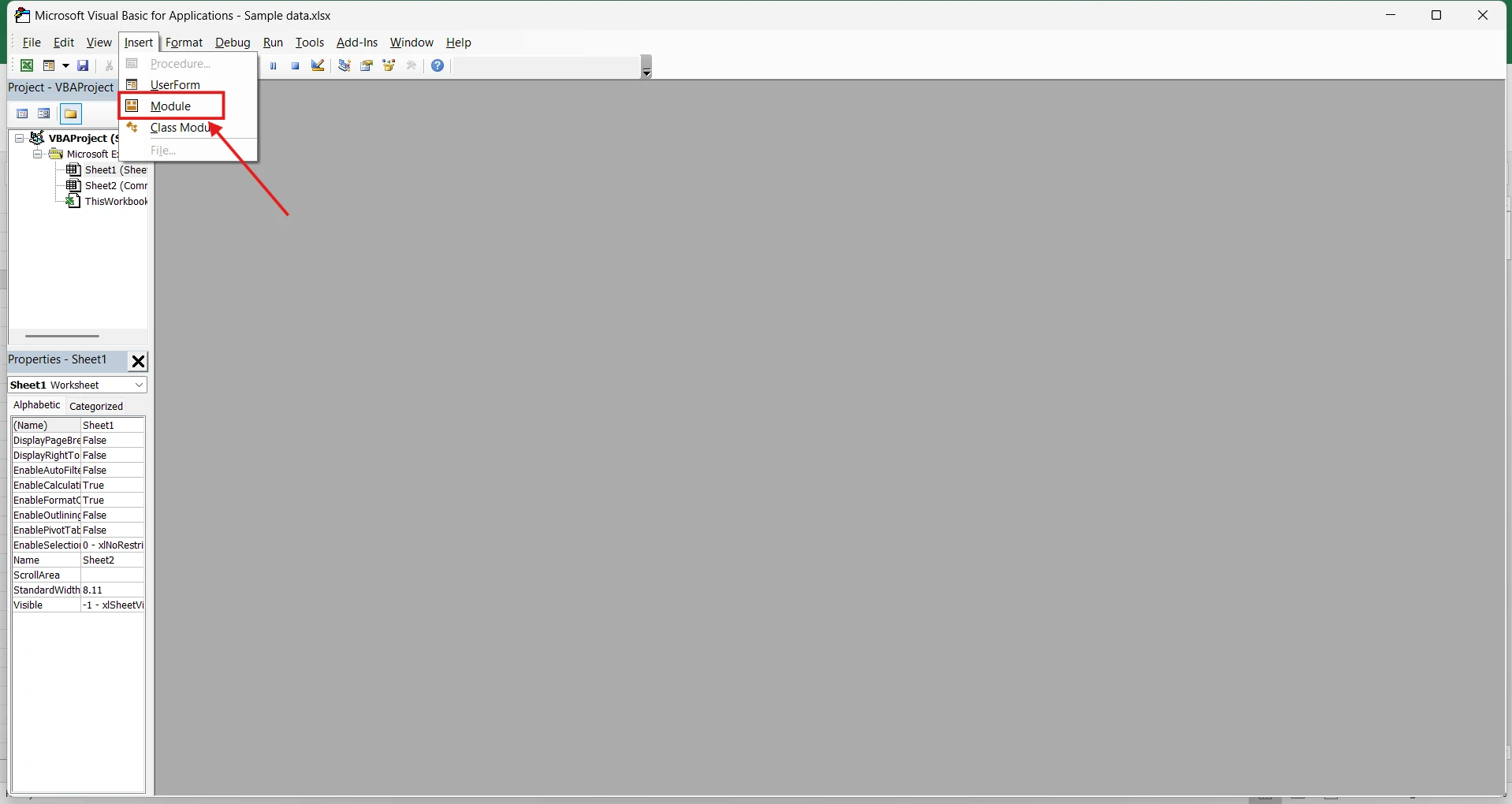
Press ALT + F11 to open the VBA editor and Click Insert → Module.
2. Write or paste the VBA (Visual Basic for Applications) code and save.
Write the VBA code or paste it into the module if you already have the VBA code.
Sub SplitCommaValues()
    Dim cell As Range
    Dim arr As Variant
    Dim i As Integer

    For Each cell In Selection
        arr = Split(cell.Value, ",")

        For i = 0 To UBound(arr)
            cell.Offset(0, i).Value = Trim(arr(i))
        Next i
    Next cell
End Sub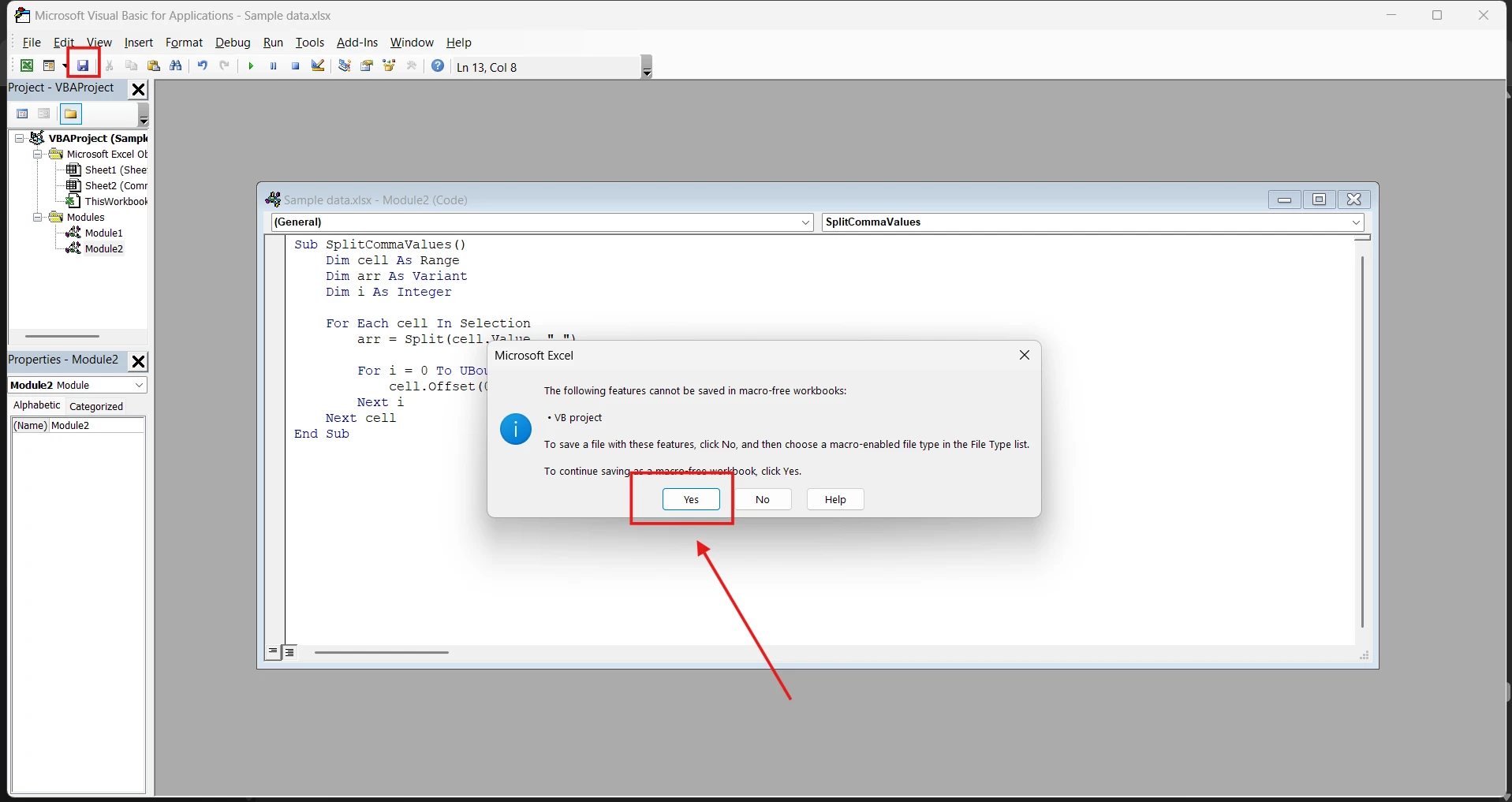
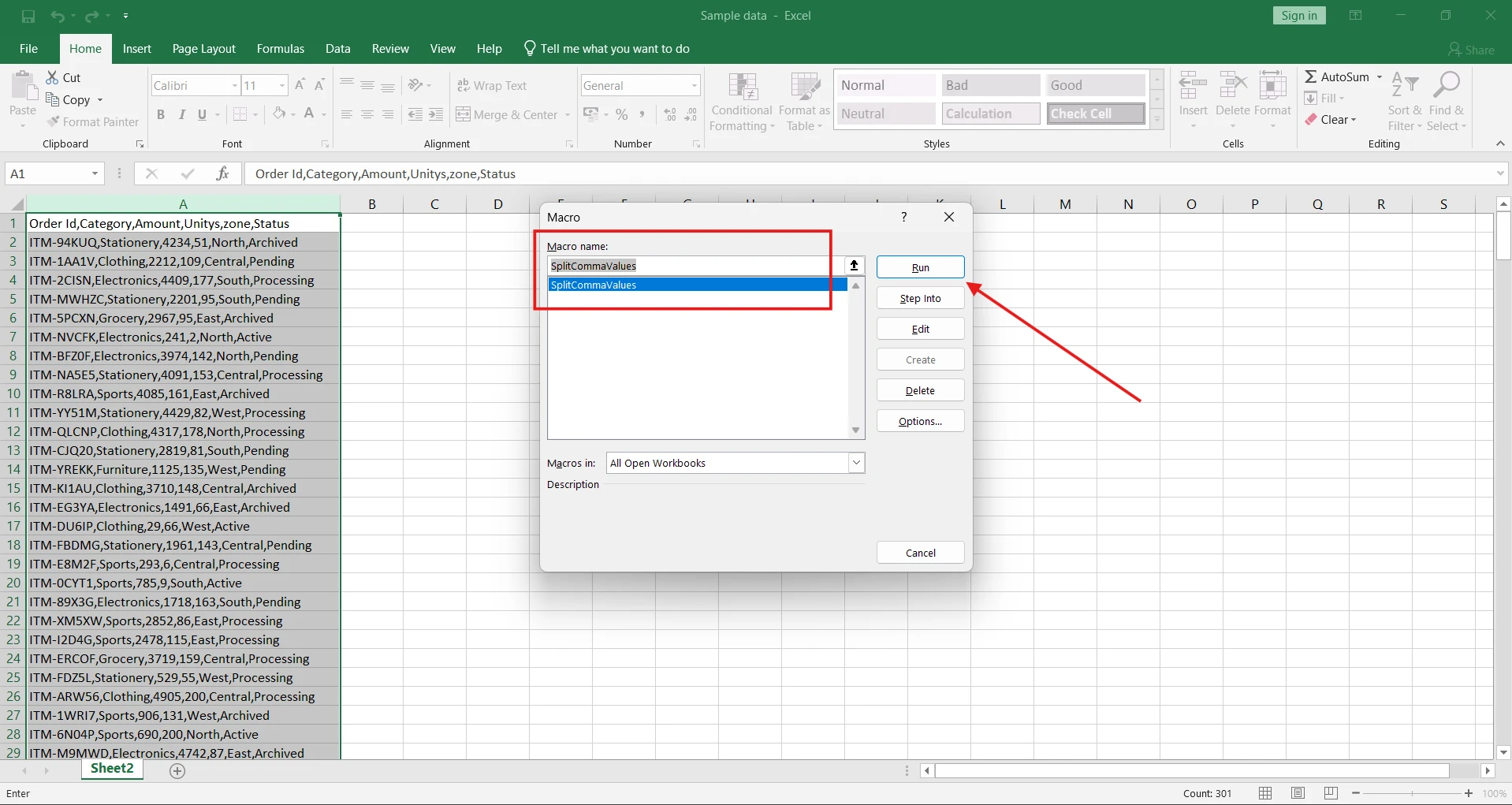
3. Run the VBA code to separate the values in column.
Just select the cells or columns whose data you want to separate and press ALT+F8. Then the macro dialog box appears; select the macro name and click RUN.
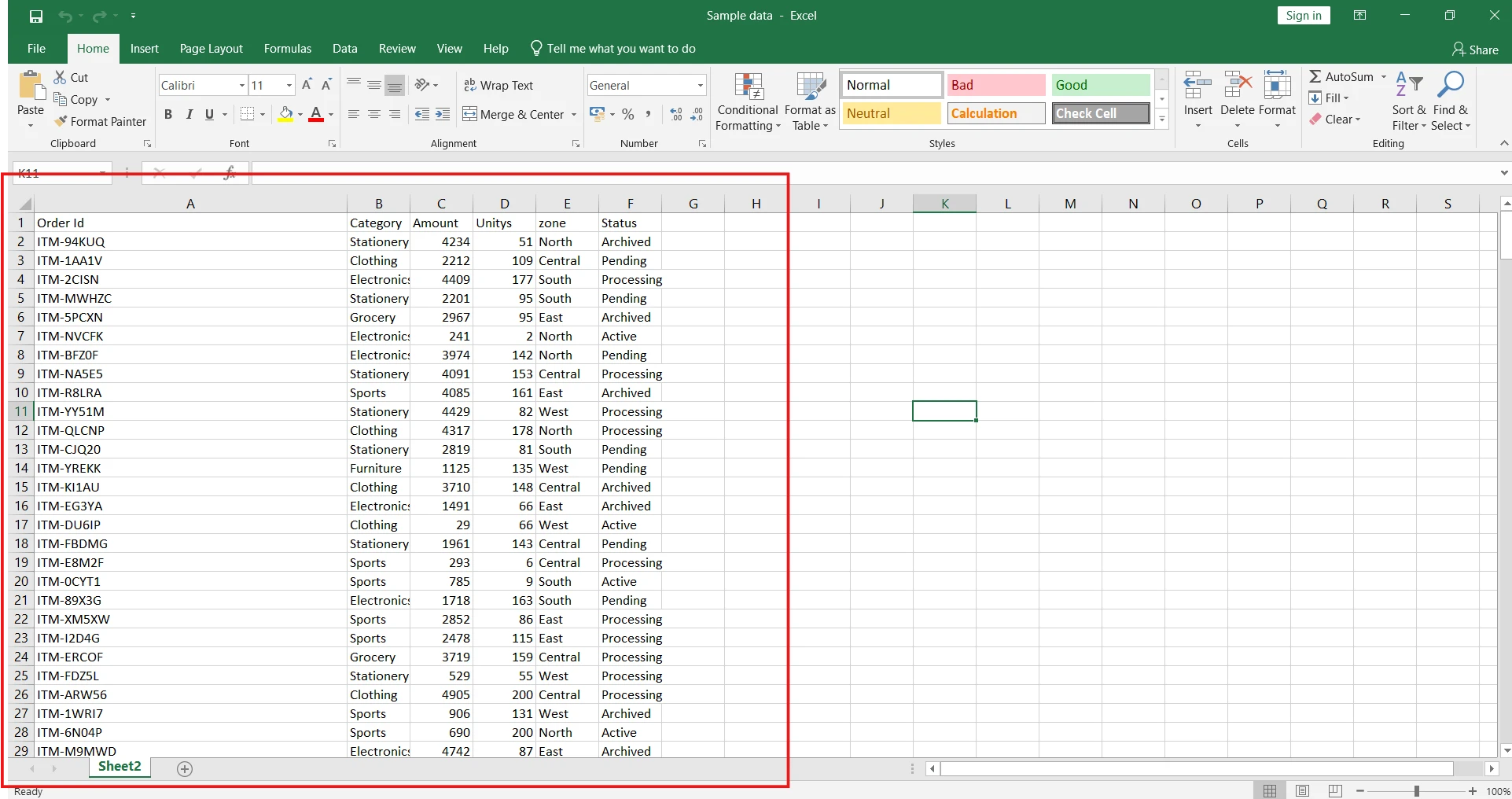
4. Output from VBA code.
As soon as you RUN the SplitCommaValues macro, each value after the column will split into separate columns.
Method 5: How to Use the ToolifyPro Comma Separator Tool (Easy and Simple)
Comma Separator is a free online tool on ToolifyPro.com, which can do both tasks: separating column values into comma-separated and vice versa, comma-separated to column-separated, in this method we check how to do the same task online and check which is the east way Microsoft excel or ToolifyPro Comma Separator Tool.
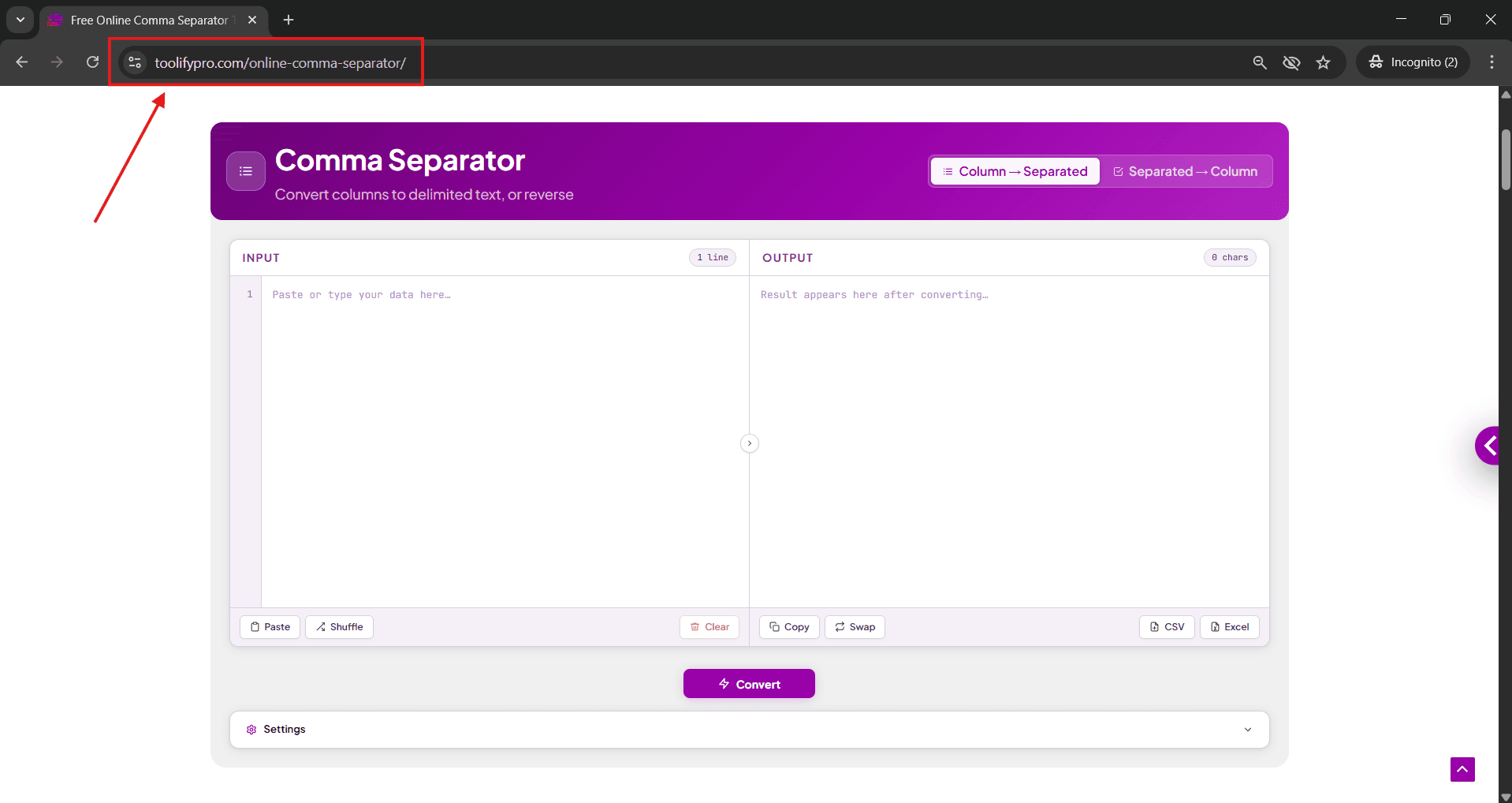
1. Open the ToolifyPro Online Comma Separator Tool in your browser.
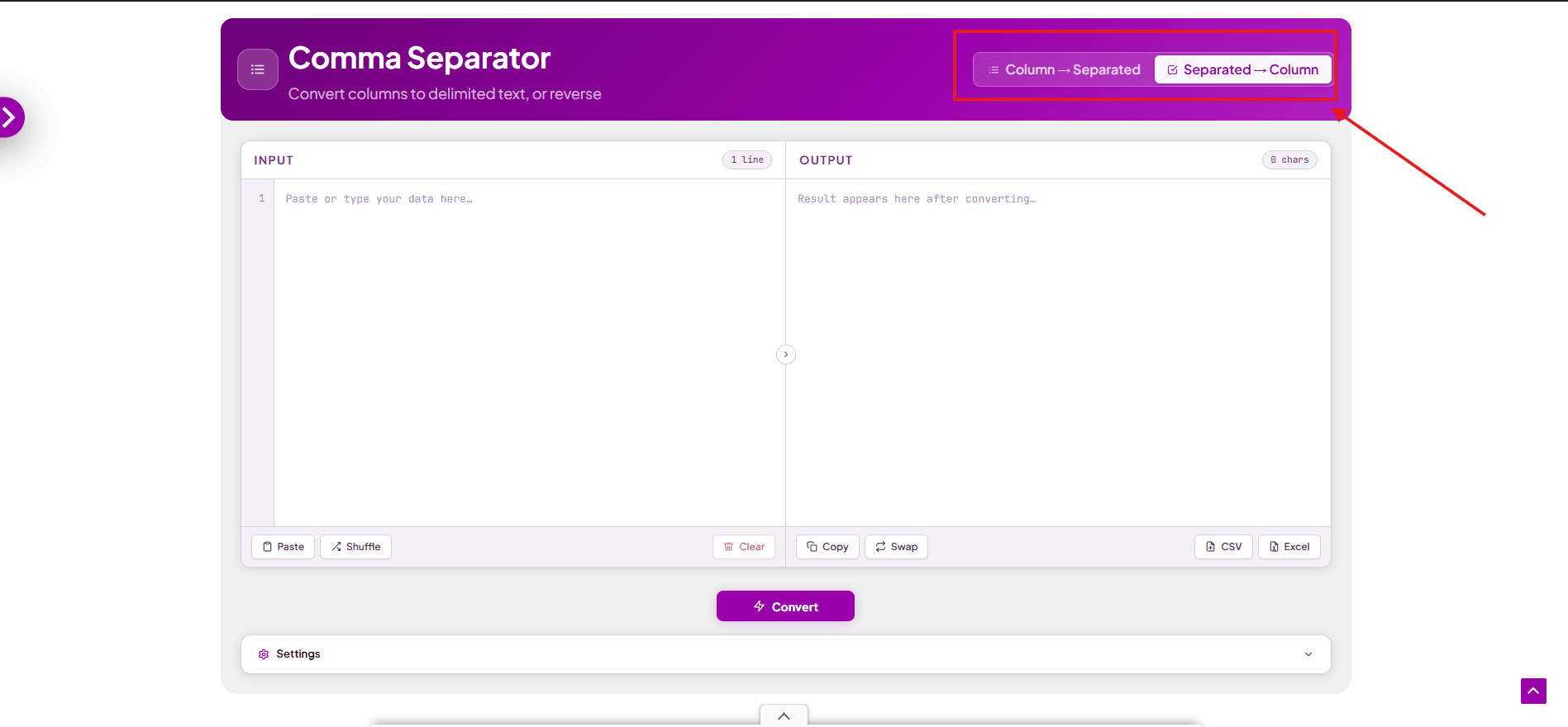
2. Choose Select comma separation type
There are two options to separate the data. The first option is column to column to comma-separated; this will convert the column value to a comma or other delimiter-separated value, and comma-separated to column will convert the comma-separated value in each separate column to look clean and readable.
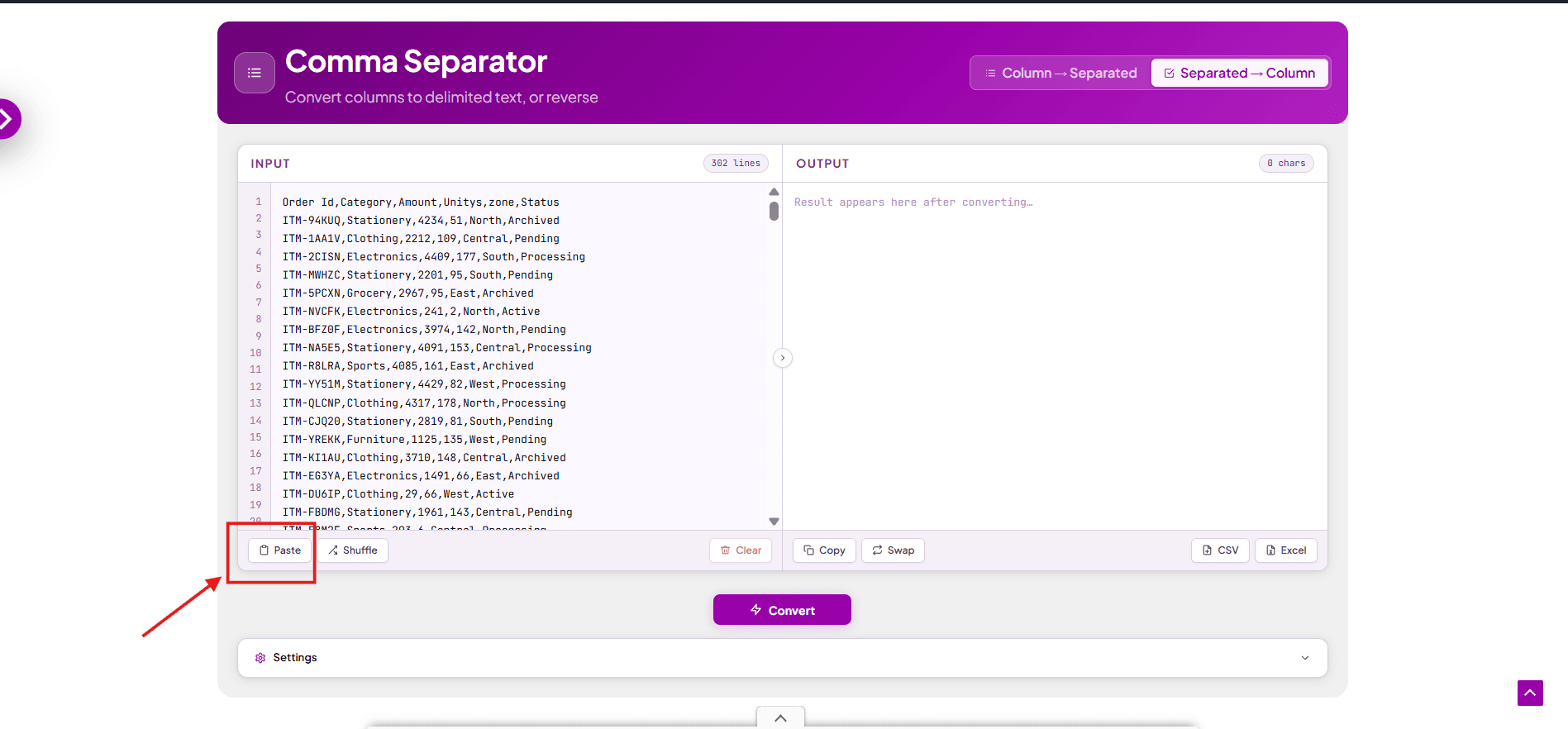
3. Paste or enter the data.
Simply paste your data.
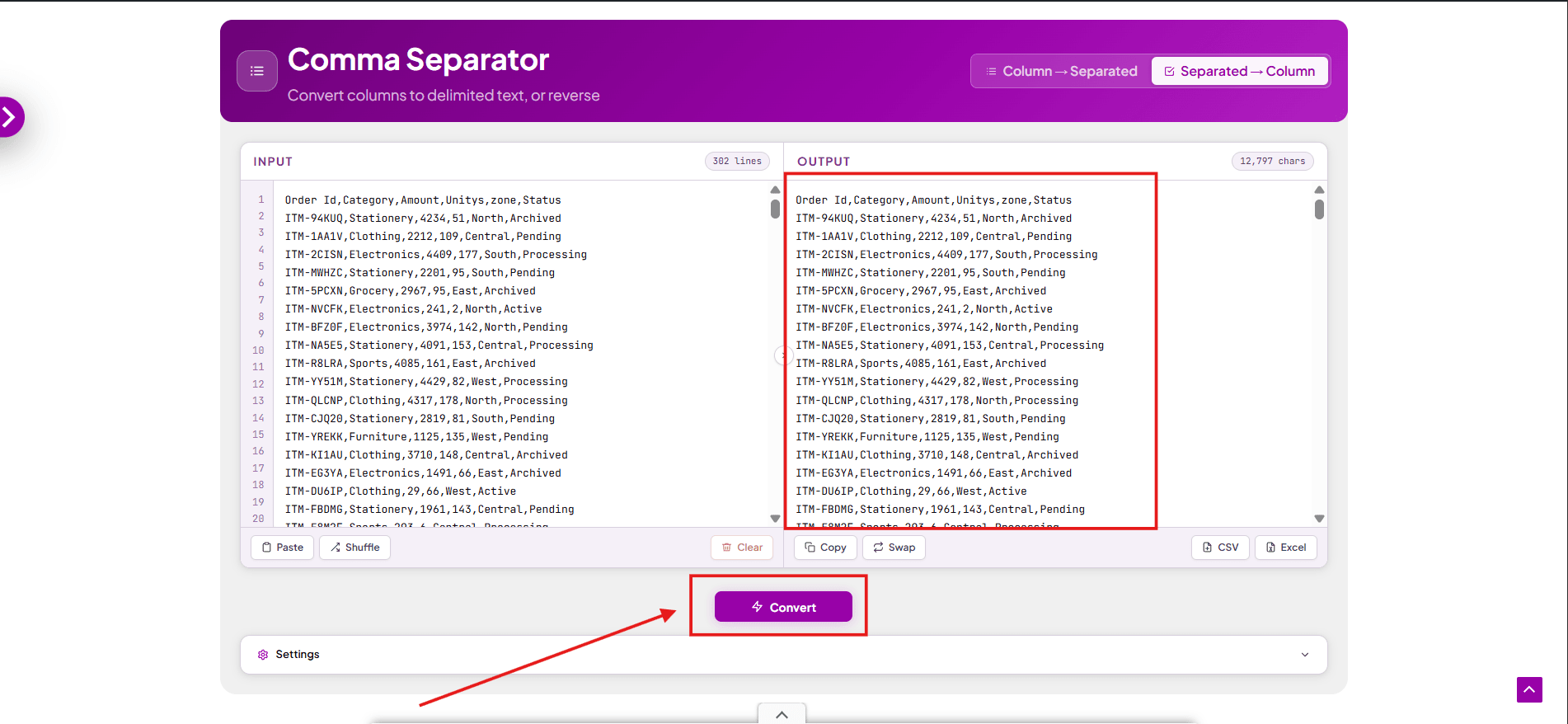
4. Change settings (optional) and Press convert button
This step is optional if you want to do some changes like add quotes, remove duplicate values, sort, etc., and click the convert button.
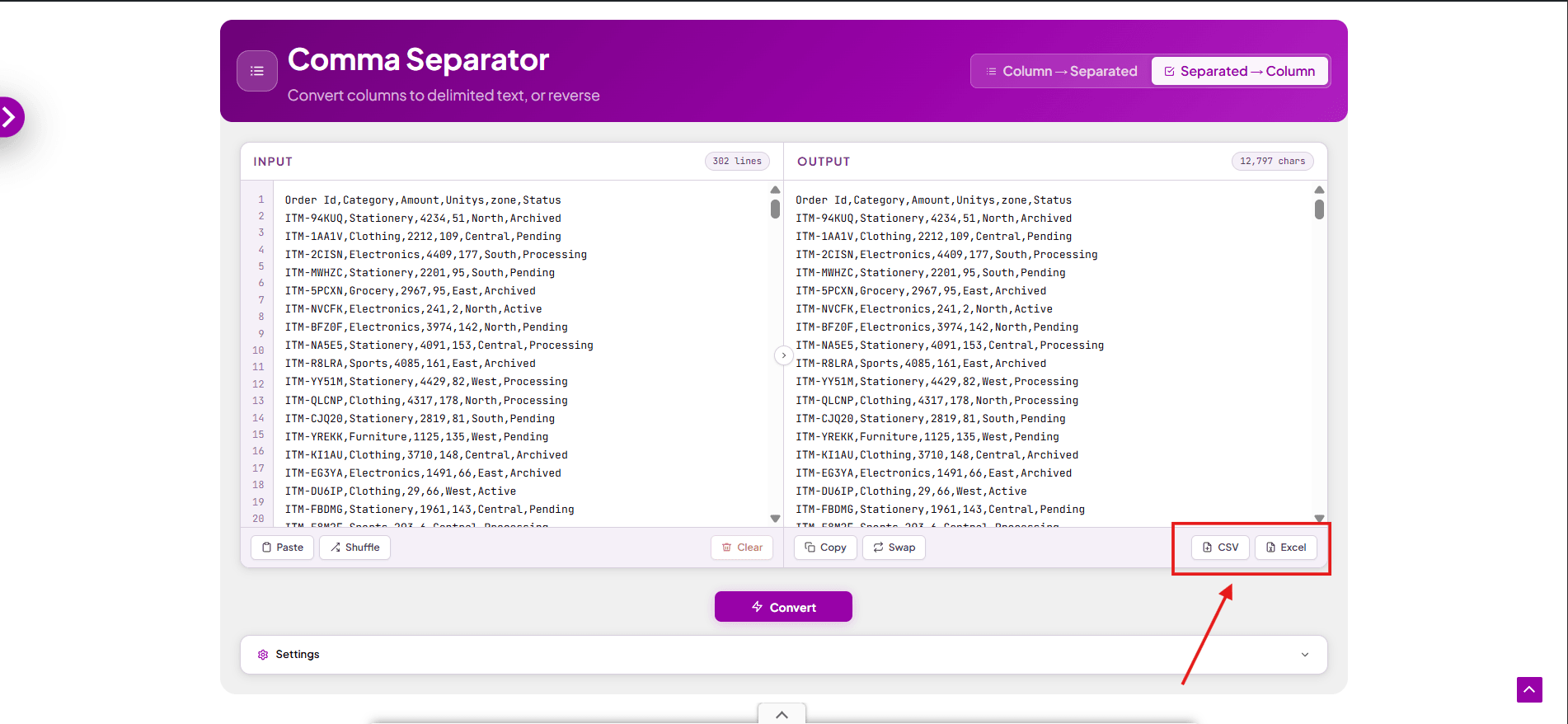
5. Download output.
You can download the file in csv or xlsx.
Conclusion
The conclusion of the article is that there are 5 methods for separating values with commas and columns: Text to Columns, the TextSplit or Combine formula, Power Query, and VBA code are the Microsoft built-in features for separating values via comma or comma to columns. Text to columns is the easiest feature, but the 5th online comma separator tool is easier to use for all, whether beginner or experienced.
FAQ (Frequently Asked Questions)
Which one is the easiest method in Excel for comma-separated values?
The easiest method is the Text to Columns feature if using Excel, and alternatively, the online comma separator tool is the easiest tool.
Is Text to Columns the best option for large data sets in Excel?
No, instead choose the Text to Columns power query feature for large data sets or an online comma separator tool.
Does Text to Columns support delimiters other than commas?
Yes, the Text to Columns feature supports more delimiters such as space, tab, semicolon, and other custom ones.
Can I split rows into columns using Power Query?
Yes, Power Query supports both column and raw data split.
Does Power Query require the same steps every time?
No. Just set it up once; after that, just have to refresh, and the same steps will be automatically applied.
Is the formula the best option instead of other options?
The formula is slightly difficult for the beginners; they might need training instead. They use the Text to Column or online comma separator tool.
Is VBA code the best option for repetitive tasks?
Yes, but required coding skills and the ability to use already written code are still basic knowledge.
Are Excel VBA macros safe?
Yes, completely safe, but make sure the data source is trusted.
Is the ToolifyPro online comma separator tool free?
Yes, this is a 100% free tool, whereas some tools require a subscription to use premium features.
Are online comma separator tools safe?
Toolifypro Online Separator does not store user data; all the operations on data are performed locally, whereas some tools store them on servers.




I was very pleased to find this web-site.I wanted to thanks for your time for this wonderful read!! I definitely enjoying every little bit of it and I have you bookmarked to check out new stuff you blog post.