
Comma Separator
Convert columns to delimited text, or reverseDrag & Drop CSV / Excel file here or Click to Upload
Introduction
Do you have a list that looks messy? Like names or things all over the place? Don’t worry! Toolifypo.com has a free tool called the Online Comma Separator. It puts commas between your words fast and makes everything neat. It’s so easy to use, and it’s free! Whether you’re making a list for school, work, or home, this comma separator online helps you in seconds. Let’s learn about it and see why it’s better than others, like the free online comma separator tool.
Table of contents
What Is a Comma Separator Tool?
Comma Separator is an online utility tool that is used to organize and format text data; it converts column words, names, sentences, numbers, or values into comma-separated format quickly. This tool is specifically designed for those who work on CSV files, tags, email IDs, database entries, etc. Instead of doing it manually, this tool saves a lot of time, reduces the error, and improves data readability.
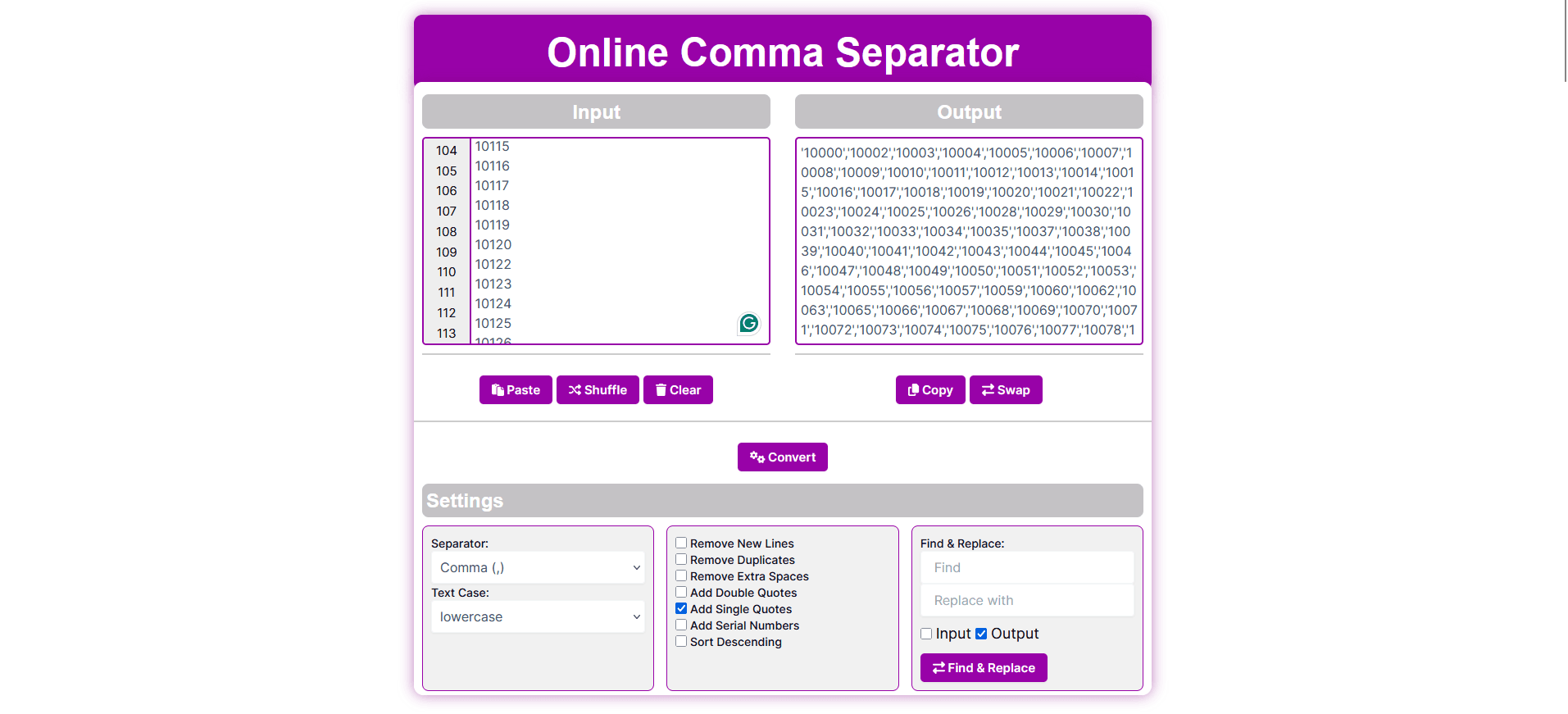
Examples of Comma Separation
The online comma separator takes your list and adds commas. For example, if you write:
- Mango
- Banana
- Apple
It turns into: Mango, Banana, Apple. See? All nice and together! You can use it for anything—names, fruits, numbers, or even big lists. It’s called an free comma separator because it works on the internet—no need to download anything.
Features of Our Free Comma Separator Tool
This tool has many fun tricks to make your list perfect. Let’s look at each one!
1. Separator: Put Commas or More
The main job is adding commas. You type “Mango Banana Apple,” and it makes “Mango, Banana, Apple.” But if you don’t like commas, you can use other things—like dots or spaces. This online comma separator tool lets you choose what you want. Great for computer work or simple lists!
2. Text Case: Change How Words Look
You can make your words look different:
- Upper Case: All big letters—like “MANGO, BANANA, APPLE.” It’s loud and clear!
- Lower Case: All small letters—like “mango, banana, apple.” Quiet and simple.
- Each Case Cap: First letter big—like “Mango, Banana, Apple.” Looks smart and nice.
This free online comma separator lets you pick whatever you like!
3. Remove New Lines
Sometimes your list has lots of lines, like this:
- Mango
- Banana
- Apple
The tool fixes it to one line: “Mango, Banana, Apple.” No more breaks! This online comma separator to column trick also works the other way if you need columns later.
4. Remove Duplicates
Got the same thing twice? Like “Mango, Banana, Mango, Apple”? This tool takes out extras and gives you “Mango, Banana, Apple.” So easy—no checking by hand!
5. Remove Extra Spaces
If your list has too many spaces—like “Mango , Banana , Apple”—it cleans it up to “Mango, Banana, Apple.” No mess, just neat!
6. Add Double Quotes
Want your list to look special? The online comma separator with double quotes adds “ ” around each word. So “Mango, Banana, Apple” becomes “”Mango”, “Banana”, “Apple”.” Perfect for computer files or big projects. This online comma separator with double quotes is super helpful!
7. Add Single Quotes
Don’t like double quotes? Try single ones! The online comma separator with single quote makes it ‘Mango’, ‘Banana’, ‘Apple’. It’s good for coding or keeping things light. This online comma separator with single quotes is a cool choice too!
8. Add Serial Numbers
Want numbers with your list? This adds them—like “1. Mango, 2. Banana, 3. Apple.” It’s great for counting things or making plans.
9. Sort Descending
Need your list backwards? Like “Mango, Banana, Apple” turns into “Apple, Banana, Mango.” This online comma separator tool makes it fast—no thinking needed!
10. Find & Replace: Change Words
Want to swap a word? Like change “Mango” to “Fruit” in “Mango, Banana, Apple”? It becomes “Fruit, Banana, Apple.” You can do this before or after—super smart!
Why Use Our Online Comma Separator?
This free online comma separator tool from Toolifypo.com is better than others because:
- Fast: Fixes your list in one second.
- Free: No money needed—use it anytime!
- Easy: No hard steps—just click and go.
- Safe: Your list stays with you, not saved anywhere.
Toolifypo.com gives you more features—like quotes, numbers, and sorting—all free!
How to Use the Online Comma Separator
Using the online comma separator is as easy as drinking water! Here’s how:
- Go to Toolifypo.com on your phone or computer.
- Find the online comma separator tool.
- Put your list in the box—type it or copy it from somewhere.
- Pick what you want—like big letters, quotes, or numbers.
- Click “Convert,” and your list is ready!
- Copy it and use it anywhere.
Even if your list is big—like 100 things—it works fast. No waiting!
Who Can Use It?
Anyone can use this free online comma separator! Here’s how:
- Students: Make school lists neat—like books or friends’ names.
- Workers: Fix lists for work—like emails or numbers in Excel.
- Shopkeepers: Sort things you sell—like “Rice, Dal, Oil.”
- You: Plan a party or shopping—no stress!
More Details About Each Feature
Let’s talk more so you really get it!

- Separator: You can make your list look how you want. Commas are normal, but you can try other things too. It’s like picking your favorite color!
- Text Case : Big letters, small letters, or a mix—whatever you need, this online comma separator does it. It’s like dressing up your words!
- Remove New Lines: No more lists going down, down, down. Everything stays in one line—nice and short. The online comma separator to column can switch it back if you change your mind.
- Remove Duplicates: If something shows up twice, it’s gone! Saves you time looking for repeats.
- Remove Extra Spaces: Spaces can make your list ugly. This tool makes it clean—like wiping a dirty table!
- Add Double Quotes: Double quotes are like little hugs for your words. The online comma separator with double quotes makes it perfect for computer stuff.
- Add Single Quotes: Single quotes are lighter—like a small pat. The online comma separator with single quotes is great for simple coding.
- Add Serial Numbers: Numbers help you count—like 1, 2, 3. Good for lists you want to follow step by step.
- Sort Descending: Backwards is fun! It puts the last thing first—no work for you.
- Find & Replace: Change anything you don’t like. It’s like fixing a mistake without rewriting!
Why Lists with Commas Are Great
Lists with commas are easy to read. Computers like them too—like in Excel or coding. This online comma separator tool makes sure your list works everywhere.
Better Than Others
Some tools only add commas. But Toolifypo.com’s free online comma separator does so much more—quotes, numbers, sorting—all free! Others, like free online comma separator tool, don’t give you all these extras.
Try It Now! – Conclusion
Don’t waste time fixing lists with your hands. The online comma separator from Toolifypo.com is fast, free, and fun. Want online comma separator with double quotes? Got it! Need online comma separator with single quotes? Done! Open it on Toolifypo.com—no sign-up, no problem. Try this free online comma separator tool today and make your lists perfect—one comma at a time!
Frequently Asked Questions
What is a comma separator tool?
A comma separator is an online tool that adds commas and other special symbols to text or numbers.
Is this comma separator tool free?
Yes, it is completely for everyone; no signup or download is required to use it.
How does the comma separator tool work?
It takes text or number input in a column, and the user has to select the delimiter, comma, or other special symbol and click convert.
Does this comma separator tool work on large data?
Yes, you can use it for 1000s of records in a single go.
Does this tool support other delimiter symbols?
Yes, Instead of using only commas, you can add more symbols like PIP, semicolons, spaces, and custom.
Do we need to download this tool?
No, this is a web-based tool that fully works online in any browser.
Is this useful for both numbers and text?
Of course, this comma separator tool is not limited to numbers only.
Does this tool store users’ data?
No, we do not store your data on our server; all the operations are done within the browser locally.
Do I need to buy a subscription to access complete features?
No, it’s 100% free.
Is this tool suitable for developers and others?
Yes, this tool is useful for all, whether you are a developer, data analyst, database manager, student, or content writer.